Yoast SEO WooCommerce: The Setup Checklist for Product Pages
By Toy Wen Da, Co-Founder · · 7 min read · scored 94/100
Yoast SEO WooCommerce setup means connecting the Yoast SEO plugin (or its WooCommerce-specific add-on) to your product and category pages so Google can read prices, stock, reviews, and clean titles. The first thing to do is open Yoast SEO → WooCommerce SEO in your WordPress dashboard and confirm the schema and sitemap settings match your catalog.

If you want to see exactly which of your product and shop pages are missing titles, schema, or alt text before you start clicking through settings, SearchBlueprint's technical SEO audit for WordPress flags those gaps across your whole site rather than one page at a time. It's a faster way to know where the Yoast WooCommerce SEO settings actually need attention.
What Yoast SEO WooCommerce Actually Adds
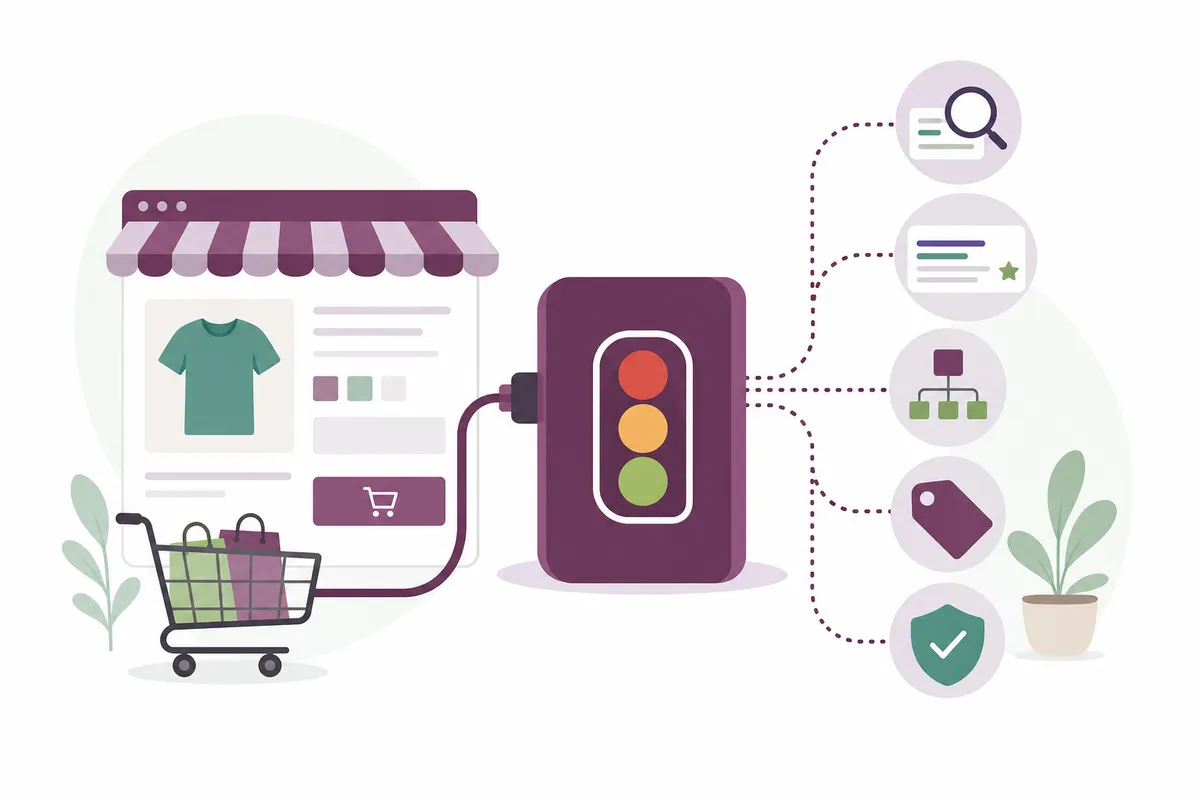
Yoast SEO, the free plugin, has been around since 2008 and now runs on more than 10 million websites, according to its own WordPress.org listing. It gives any post or page a title, meta description, and basic readability check.
Yoast WooCommerce SEO is a separate, paid extension built on top of that. It requires Yoast SEO or Yoast SEO Premium installed first, but Premium is included in the WooCommerce SEO bundle at no extra cost, you're not buying two things.
What the add-on changes on product pages
Once active, Yoast SEO for WooCommerce adds:
- Structured data for price, stock status, and review ratings, following the vocabulary defined by Schema.org, so Google can show rich product results.
- A dedicated WooCommerce product sitemap that skips cart, checkout, and account pages.
- Content checks built for ecommerce copy, including short-description length and image alt text, not just blog-style readability.
- AI-drafted titles and meta descriptions for products and categories, reviewed before anything publishes.
How to Set Up Yoast SEO for WooCommerce
Install and Activate the Plugins
Install Yoast SEO first from the WordPress plugin directory, then activate Yoast WooCommerce SEO (or Yoast SEO AI+, which includes it) as a second plugin. Both need to be active for the WooCommerce-specific settings to appear.
Configure the WooCommerce SEO Settings
In your WordPress Dashboard, go to Yoast SEO, then WooCommerce SEO. This screen controls three things: Schema OpenGraph additions, breadcrumb behavior, and admin meta box order.
Under Schema OpenGraph additions, you can map WooCommerce product attributes, manufacturer, brand, color, pattern, material, size, into structured data. These only output correctly if you've first created matching attributes in WooCommerce under Products → Attributes.
If your theme or Yoast already shows breadcrumbs, tick Replace WooCommerce Breadcrumbs so visitors and search engines see one consistent trail instead of two competing ones.
Set Product Identifiers and Add Alt Text
Open any product for editing, click the Yoast SEO tab inside the Product data meta box, and add identifiers like GTIN, ISBN, or MPN if your products have them. Yoast uses these in schema and Open Graph output.
The same meta box flags missing image alt text on featured, gallery, and variation images. If this is new to you, the plugin's own metabox is also where editors most often lose track of their settings, see where the Yoast SEO meta box lives and how to fix it when it disappears for the common causes.

Fix the Metabox Order and Sitemap
Still on the WooCommerce SEO settings screen, under Admin, tick Move WooCommerce up if you want the WooCommerce product-data box to appear above the Yoast SEO box while editing, purely a workflow preference.
You don't need to touch the XML sitemap manually. Yoast WooCommerce SEO automatically removes Cart, My Account, and Checkout pages from it and pulls in Product Gallery images instead, so search engines spend their crawl budget on pages that actually sell something.
One honest caveat: aggregateRating schema only appears once a product has at least one real review. No review, no rating stars in search, there's no setting that fakes this.
Free Yoast SEO vs. Yoast WooCommerce SEO

| Feature | Yoast SEO (Free) | Yoast SEO Premium | Yoast WooCommerce SEO |
|---|---|---|---|
| Price | Free | $118.80/year (ex. VAT) | $178.80/year (ex. VAT) |
| Product price/stock/review schema | Not included | Not included | Included |
| WooCommerce-specific XML sitemap | Not included | Not included | Included (excludes cart/checkout) |
| AI-generated product titles & descriptions | Not included | Site-wide only | Product and category level, plus bulk |
| Image alt text checks for product images | Basic | Basic | Ecommerce-specific (featured, gallery, variation) |
| Bundled extras | None | Local SEO, Video SEO, News SEO, Google Docs seat | Everything in Premium, plus all of the above |
Common Mistakes When Setting Up Yoast SEO for WooCommerce
The most frequent error is treating product schema as automatic. It isn't, Yoast only outputs brand, color, and material properties once those exist as WooCommerce attributes first. A second common mistake is writing short descriptions under 20 words; Yoast's own content check treats 1–19 words as "short" and 50+ as "long," so anything in between the extremes scores better for both shoppers and the plugin's readability signal.
Store owners also frequently skip the breadcrumb setting, leaving two breadcrumb trails live at once, which confuses both users and crawlers. And many assume the free plugin alone generates rich results for products, it doesn't; that requires the paid WooCommerce extension or an equivalent schema tool.
If you've compared plugins before settling on Yoast, it's worth knowing how the alternatives stack up on ecommerce specifically: see how All in One SEO compares to Yoast for WordPress and how Rank Math stacks up against Yoast if product schema and bulk editing are your deciding factors.
When WordPress's Own Tools Are Enough, and When They Aren't
| Situation | Is free Yoast SEO enough? | Why |
|---|---|---|
| Fixing one product's title and meta description | Yes | The free plugin's per-page editor handles a single fix fine. |
| Writing GTINs and rich-result schema for a 500-product catalog | No | Manual entry per product doesn't scale; bulk tools matter here. |
| Keeping cart/checkout pages out of your sitemap | Yes, with WooCommerce SEO | This is automatic once the add-on is active, no ongoing work. |
| A store selling across multiple physical locations | No | You need location-aware SEO, not just product schema, see SearchBlueprint's local SEO features for rank grids and location pages. |
| Finding every page site-wide missing schema or alt text | No | One-off checks in the product editor won't surface this at scale; a full-site audit will. |
Free Yoast SEO is genuinely enough for a small store with a stable product line and someone checking each listing by hand. It stops being enough the moment you're managing dozens of product variants, need consistent metadata across hundreds of SKUs, or want to catch gaps without opening every product one at a time.
FAQs
Do I need WooCommerce SEO if I already have Yoast SEO Premium?
Yoast SEO Premium alone doesn't add product schema, GTIN fields, or the WooCommerce-specific sitemap. You need the separate Yoast WooCommerce SEO extension for ecommerce-specific structured data, though it includes Premium's features as part of the bundle.
Can I use Yoast WooCommerce SEO without the free Yoast SEO plugin?
No. Yoast WooCommerce SEO requires Yoast SEO or Yoast SEO Premium active first. The paid WooCommerce bundle includes Premium, so you aren't buying it twice.
Why isn't my product showing star ratings in Google?
Aggregate rating schema only outputs once a product has at least one review. If there are zero reviews, there's nothing for Yoast to display, regardless of your settings.
Does Yoast WooCommerce SEO slow down my site?
The plugin generates schema and sitemap data on the fly rather than adding front-end scripts, so it shouldn't meaningfully affect page speed on its own. Overall site speed still depends on hosting, images, and theme.
What happens to Cart and Checkout pages in my sitemap?
Yoast WooCommerce SEO removes them automatically, along with the My Account page, and replaces that space with product gallery images, no manual sitemap editing required.
Get Your Product Pages Checked Before You Change Anything Else
Start with the Yoast SEO → WooCommerce SEO screen, map your product attributes, and confirm schema is actually outputting on a live product page before you touch anything else. If you'd rather see which products and categories need fixing first instead of auditing each one by hand, talk to the team and get a sample SEO report built around your own WooCommerce store.
Resources / References
Sources
About the author
SearchBlueprint researched, wrote and scored this article with the content pipeline our customers run on their own sites. The score in the byline is what our content engine gave this page before it published. Nothing here is reviewed by hand, which is the point: it is the product's output, published where anyone can check it.