Yoast Sitemap: Find It, Fix It, Submit It Correctly
By Toy Wen Da, Co-Founder · · 6 min read · scored 93/100
Your Yoast sitemap is the XML file Yoast SEO builds automatically at yoursite.com/sitemap_index.xml, listing every indexable page, post and category on your WordPress site. The first thing to do is check whether XML sitemaps are turned on under SEO settings, then open that URL directly in your browser to see what Google actually sees.

What Your Yoast Sitemap Actually Contains
A Yoast sitemap isn't one flat file. It's an index page that points to separate sub-sitemaps: one for posts, one for pages, one for each public taxonomy like categories or tags. Each entry lists a URL, its last-modified date, and sometimes an image reference. Search engines read this index, then crawl each sub-sitemap in turn.
Why This Structure Matters
Breaking the sitemap into smaller files keeps each one fast to fetch and easy for Google to recrawl selectively. If you publish a new blog post, only the posts sub-sitemap needs refreshing, Google doesn't have to re-read your entire site's URL list.

Where to Find and Enable Your Yoast Sitemap in WordPress

Here's the exact path, as the plugin's menus are labeled today:
- Log into your WordPress dashboard.
- In the left sidebar, click SEO, then Settings.
- Click the Site features tab along the top.
- Scroll to the APIs section and find XML sitemaps.
- Toggle it on, you'll see a checkmark confirming it's active.
- Click Save changes at the bottom of the page.
- Click View the XML sitemap next to the toggle to open it in a new tab.
That link opens sitemap_index.xml. If you prefer to check it without digging through settings, paste your homepage URL plus /sitemap_index.xml straight into the address bar.
Choosing What Appears in the Sitemap
Go back to SEO > Settings and open the Content types tab. For each post type and taxonomy, you'll see a toggle for Show in search results. Turning this off removes that content type from both search results and the sitemap. Yoast also automatically excludes anything marked noindex, password-protected content, drafts and (on single-author sites) author archive pages.
Yoast Sitemap vs. WordPress's Built-In Sitemap
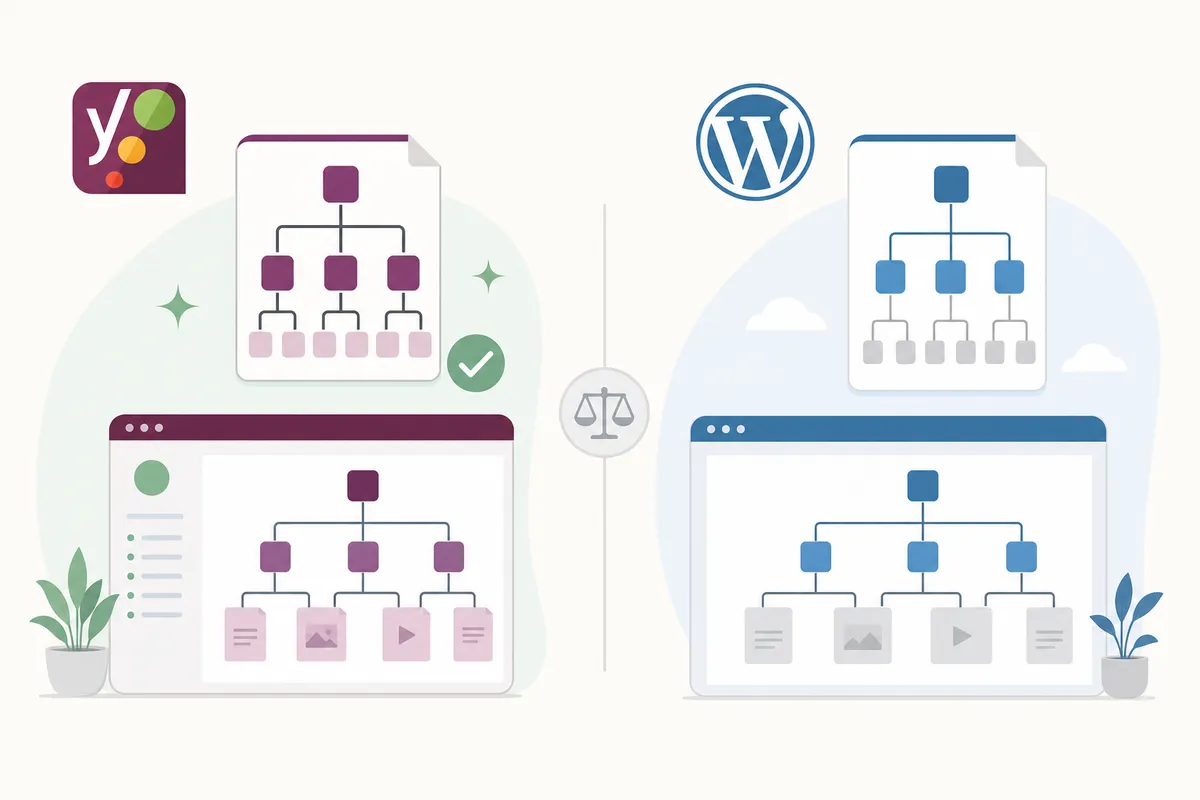
Every WordPress install has shipped with a basic sitemap since version 5.5 landed in 2020. Installing Yoast disables that core sitemap and replaces it entirely, which is the behavior you want.
| Feature | WordPress Core Sitemap | Yoast SEO Sitemap |
|---|---|---|
| Respects "noindex" tags | No, noindexed pages can still appear | Yes, automatically filtered out |
| File organization | Single flat list | Index file with separate sitemaps per content type |
| Large-site handling | Limited | Splits into chunks of 1,000 URLs per file |
| Updates on content changes | Basic, slower to reflect edits | Automatic, refreshes as you publish or edit |
| Customization | Minimal | Toggle any content type on or off |
If you ever deactivate Yoast SEO, WordPress's core sitemap takes back over automatically, worth remembering before you swap SEO plugins.
Submitting Your Yoast Sitemap to Google Search Console
Enabling the sitemap only helps if Google knows it exists.
- Go to Google Search Console and select your verified property.
- In the left sidebar, click Sitemaps under the Indexing section.
- In the Add a new sitemap box, type
sitemap_index.xml. - Click Submit.
- Refresh after a few minutes and confirm the status reads Success.
If it shows Couldn't fetch or Has errors instead, double-check that your site is publicly accessible, confirm XML sitemaps are still toggled on in Yoast, and try resubmitting after waiting roughly 24 hours, Google's crawler doesn't always recheck instantly.
When WordPress's Own Tools Are Enough, and When They Aren't
For a single bad URL, one page stuck on "Couldn't fetch" or missing a last-modified date, the built-in sitemap view and Search Console's URL Inspection tool are usually all you need. Enable the sitemap, resubmit it, and move on.
Where the free, built-in route runs out of road:
- Recurring errors across many URLs, not a one-off page, that usually points to a server, caching or redirect problem the sitemap itself can't fix.
- Auditing a site you don't control, like a client's or a competitor's, where you can't log into WordPress at all. A standalone sitemap checker lets you fetch and inspect any public XML sitemap without plugin access.
- Migrations and replatforming, where you need to compare an old sitemap against a new one to confirm nothing got dropped.
- Sites without Yoast at all, including custom or headless builds, where you're working from a raw
wp-sitemap.xmlfile instead. The differences in structure and defaults are worth understanding before you troubleshoot, this guide to reading and fixing wp-sitemap.xml walks through it.
Common Mistakes to Avoid
- Running two sitemap plugins at once. If Yoast and another SEO plugin both try to generate a sitemap, you get conflicting files and confused crawlers.
- Submitting the wrong filename. It's
sitemap_index.xml, notsitemap.xml, submitting the latter in Search Console will simply fail. - Leaving tag or author archives switched on when they add little unique content, bloating the sitemap with thin pages.
- Assuming "Success" means every page is indexed. The Sitemaps report only confirms Google read the file, check the Pages report under Indexing for actual indexing status.
- Forgetting to resubmit after a site migration or domain change, leaving Search Console pointed at a sitemap that no longer matches your URLs.
Yoast Sitemap FAQs
Where exactly is my Yoast sitemap located?
At yoursite.com/sitemap_index.xml. This index links to separate sitemaps for posts, pages, and each taxonomy you've enabled.
Why is my sitemap showing "Couldn't fetch" in Search Console?
This usually means Google's crawler couldn't reach the file, check that XML sitemaps are enabled in Yoast, that your hosting isn't blocking crawlers, and that the site itself is online, then resubmit after about 24 hours.
Does Yoast automatically update the sitemap when I publish new content?
Yes. Yoast refreshes affected sitemap files automatically whenever you publish, edit or delete content, no manual regeneration needed.
Can I remove certain content types from my Yoast sitemap?
Yes, under SEO > Settings > Content types, toggle Show in search results off for any post type or taxonomy you don't want included.
What's the difference between a Yoast SEO sitemap and robots.txt?
The sitemap lists pages you want crawled and indexed; robots.txt instead tells crawlers which paths to avoid entirely. Yoast manages both, but they serve opposite purposes.
For deeper technical detail on sitemap standards, the sitemaps overview from Google Search Central is a solid reference.
Check Yours Today
Open sitemap_index.xml on your own site right now and confirm it matches what you expect, no stray noindex pages, no missing sections. A correctly configured Yoast sitemap, submitted to Search Console, is one of the fastest wins available to any WordPress site. To see how the rest of your technical setup stacks up alongside it, talk to the team.
Resources / References
Sources
About the author
SearchBlueprint researched, wrote and scored this article with the content pipeline our customers run on their own sites. The score in the byline is what our content engine gave this page before it published. Nothing here is reviewed by hand, which is the point: it is the product's output, published where anyone can check it.