wp-sitemap.xml: How to Find, Read and Fix Yours
By Toy Wen Da, Co-Founder · Updated · 7 min read · scored 91/100
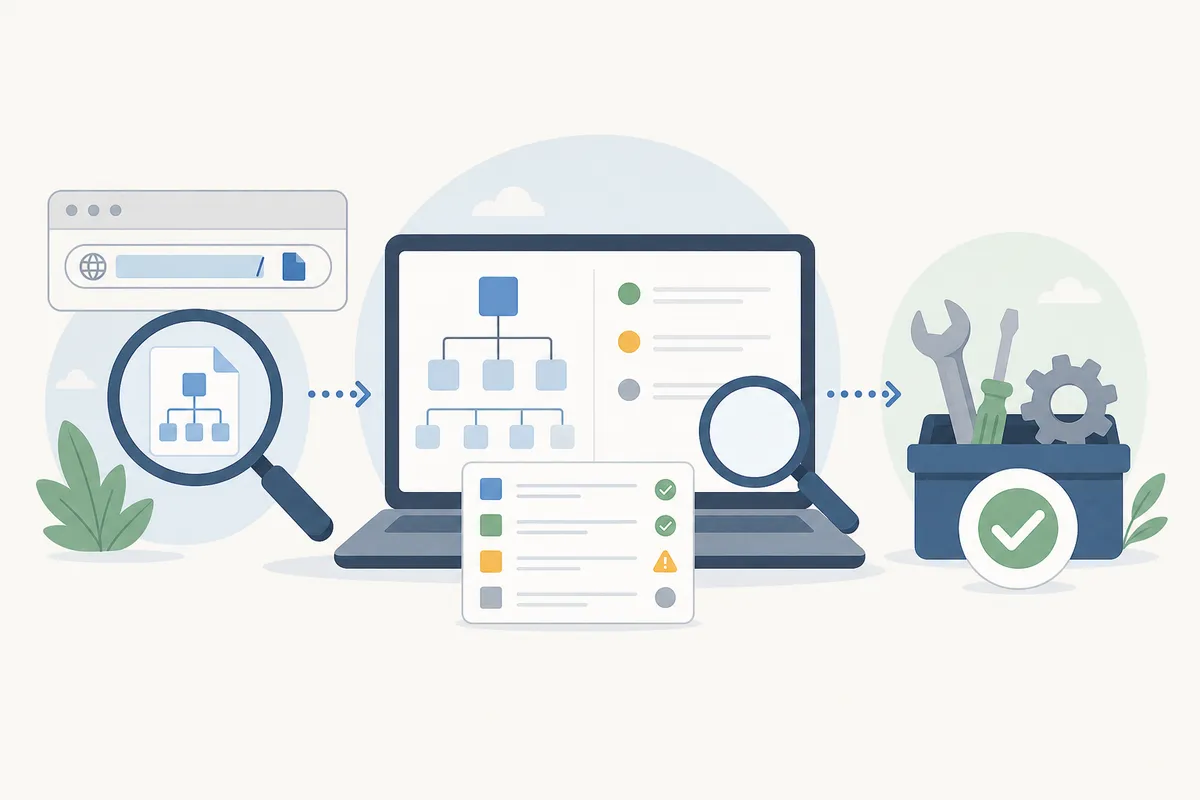
Your wp-sitemap xml is the built-in sitemap WordPress generates automatically at yoursite.com/wp-sitemap.xml. If it won't load, open that exact URL first, then check whether an SEO plugin such as Yoast or All in One SEO has replaced it with its own sitemap_index.xml file.
What wp-sitemap.xml actually is
Since WordPress 5.5, core builds an XML sitemap with no plugin involved. It lives at /wp-sitemap.xml and works as an index that points to smaller files such as wp-sitemap-posts-post-1.xml and wp-sitemap-posts-page-1.xml. Each sub-file holds up to 2,000 URLs before WordPress starts a new one, a behavior documented in a WordPress.org Make Core post on the 5.5 sitemaps feature.
So any WordPress site on a reasonably current version already has a sitemap, whether anyone configured one or not. What searchers usually want to know isn't how to create one but why they can't find theirs, and whether it's the right one.

How to find your site's wp-sitemap.xml

Start with the plain URL: type yoursite.com/wp-sitemap.xml into the address bar. If it loads, you'll see an XML index page, sometimes with a readable stylesheet, that lists the sub-sitemaps. If it 404s, work through these in order:
- Flush permalinks. Go to Settings → Permalinks and click Save Changes without changing anything. This resets the rewrite rules that make
/wp-sitemap.xmlresolve. - Check Settings → Reading. If "Discourage search engines from indexing this site" is checked, WordPress disables the sitemap entirely, so uncheck it.
- Look for a competing plugin. An active SEO plugin almost always takes over sitemap duty and uses a different filename.
If a plugin changed the URL
A plugin is the most common reason wp-sitemap.xml comes up empty, because something else is already generating a sitemap under a different name.
| Sitemap Source | Default URL | Who Controls It | Notes |
|---|---|---|---|
| WordPress core (no plugin) | /wp-sitemap.xml |
WordPress itself | On by default since version 5.5; disabled automatically if the site is set to discourage indexing |
| Yoast SEO | /sitemap_index.xml |
Yoast SEO plugin | Toggled under SEO → General → Features → XML Sitemaps |
| All in One SEO (AIOSEO) | /sitemap_index.xml |
AIOSEO plugin | Enabled by default on install; managed under AIOSEO → Sitemaps |
| XML Sitemap Generator for Google (Auctollo) | /sitemap.xml |
The plugin, under Settings → XML-Sitemap | A long-running free plugin; one reviewer described it as doing its job "with complete transparency," without upsells or ads |
| WP Sitemap Page | A shortcode-rendered page, not a standalone file | The plugin | Builds an HTML sitemap only, it does not produce an XML file, despite the name sounding similar |
With one of these plugins active, wp-sitemap.xml will redirect, 404, or sit dormant while the plugin's own file does the real work. That's expected behavior, not a bug to chase.
Fixing wp-sitemap.xml problems inside WordPress
Once you know which system should be generating your sitemap, the fix is usually a settings change rather than code.
Turn core sitemaps back on
- Go to Settings → Reading and confirm "Discourage search engines from indexing this site" is unchecked.
- Go to Settings → Permalinks and click Save Changes to flush rewrite rules.
- Deactivate any plugin you're not actively using for SEO. Two sitemap generators running together are how sites end up with conflicting files.
Let your plugin own it instead
If you're using an SEO plugin on purpose, don't fight it for the wp-sitemap.xml slug. In Yoast, confirm the toggle under SEO → General → Features → XML Sitemaps is on, then use the sitemap URL it gives you rather than the core one. In All in One SEO, sitemaps are on from install; check All in One SEO → Sitemaps → General Sitemap and click Open Sitemap to see the live file.
When WordPress's own tools are enough
Core WordPress sitemaps and a plugin's sitemap page are built to answer one question: does my site have a working sitemap? They aren't built to diagnose a recurring crawl problem or to audit URLs outside WordPress.
| Situation | Is wp-sitemap.xml Enough? | What to Use Instead |
|---|---|---|
| Confirming one WordPress site has a live sitemap | Yes | Just check the URL, or run the free Sitemap Checker |
| One missing or wrongly-canonicalized page | Yes, usually | Check that page's post type is included in the sitemap settings |
| A one-off crawl of the whole site, including non-WordPress pages or a staging subdomain | No | A standalone crawler built for ad-hoc audits |
| Sitemap errors that keep recurring across deploys | No | A monitored, scheduled check rather than a manual one-time look |
| Large multisite network or ecommerce catalog with thousands of SKUs | Partially | Core handles the mechanics, but you'll want ongoing monitoring of indexing status, not just file existence |
Say you inherited a site and need to see every URL that should be indexed before you change anything. The free XML Sitemap Generator crawls the live site directly and gives you a downloadable file, independent of whatever WordPress or its plugins are doing internally.
Common mistakes with wp-sitemap.xml
- Assuming a 404 means something is broken. Often a plugin has just renamed the file, so check for
sitemap_index.xmlbefore troubleshooting further. - Leaving "Discourage search engines" checked after launch. It's a common leftover from a staging site, and it quietly kills the sitemap along with search visibility.
- Confusing an HTML sitemap plugin with an XML one. WP Sitemap Page, for example, has more than 200,000 active installations and a 4.8-star average rating, but it generates a human-readable HTML page via shortcode, not an XML file search engines crawl.
- Running two sitemap-generating plugins at once. The result is duplicate or conflicting files at different URLs, and search engines may index the stale one.
- Finding the file but never submitting it. A working sitemap that Google Search Console doesn't know about isn't doing its job.
Submitting your sitemap to Google
Once wp-sitemap.xml (or your plugin's equivalent) loads correctly, tell Google where it is. Sign in to Google Search Console, open the Sitemaps section for your property, and submit the full URL. If you haven't done this before, the walkthrough in how to add a sitemap to Google Search Console covers the exact screens and what a successful submission looks like versus an error.
FAQs
Is wp-sitemap.xml the same thing as sitemap.xml?
Not necessarily. wp-sitemap.xml is specifically WordPress core's default file, while sitemap.xml and sitemap_index.xml are names used by various plugins, so the filename on your site depends on what's generating it.
Why does my wp-sitemap xml return a 404 error?
The three usual causes are a plugin that has taken over and renamed the file, "Discourage search engines from indexing this site" being checked in Settings → Reading, or permalink rules that need flushing by resaving Settings → Permalinks.
Do I need a plugin to have an XML sitemap on WordPress?
No. WordPress has generated one automatically at /wp-sitemap.xml since version 5.5. You only need a plugin for extra control, such as custom priorities, video sitemaps, or excluding specific post types.
How often does WordPress update the sitemap?
Core sitemaps regenerate dynamically as content changes, so there's no static file to re-upload. Publishing or deleting a post updates the relevant sub-sitemap automatically.
Can a WordPress site have more than one XML sitemap?
Yes, and that's normal. The main file is an index pointing to smaller sitemaps split by post type, so a site with posts, pages and products may have several sub-files under one index.
Check yours before you move on
Run your own domain through the Sitemap Checker now to see whether wp-sitemap.xml is live, which URLs it contains, and whether a plugin has quietly swapped it out. If you'd like someone to walk through how your sitemap and the rest of your technical setup look to Google, talk to the team by requesting a sample SEO report.
Sources
About the author
SearchBlueprint researched, wrote and scored this article with the content pipeline our customers run on their own sites. The score in the byline is what our content engine gave this page before it published. Nothing here is reviewed by hand, which is the point: it is the product's output, published where anyone can check it.