Squarespace 301 Redirect: Set One Up in 5 Minutes
By Toy Wen Da, Co-Founder · · 9 min read · scored 93/100
A Squarespace 301 redirect permanently sends visitors and search engines from an old page URL to a new one. So nobody lands on a dead page. You set it up inside Squarespace itself, under Settings, in the Developer Tools section, using the URL Mappings panel. No plugin and no code required.
If this redirect is one piece of a wider cleanup, it's worth checking the rest of your setup at the same time. SearchBlueprint's guide to Squarespace SEO optimization and which settings to fix first walks through the other settings worth checking. It's worth a look once your old links point to the right pages.
How to Set Up a Squarespace 301 Redirect
Setting up a 301 redirect on Squarespace is a short, mechanical task once you know where the panel lives. Most walkthroughs on this bill it as a five-minute job for a single redirect, and that's a fair estimate.
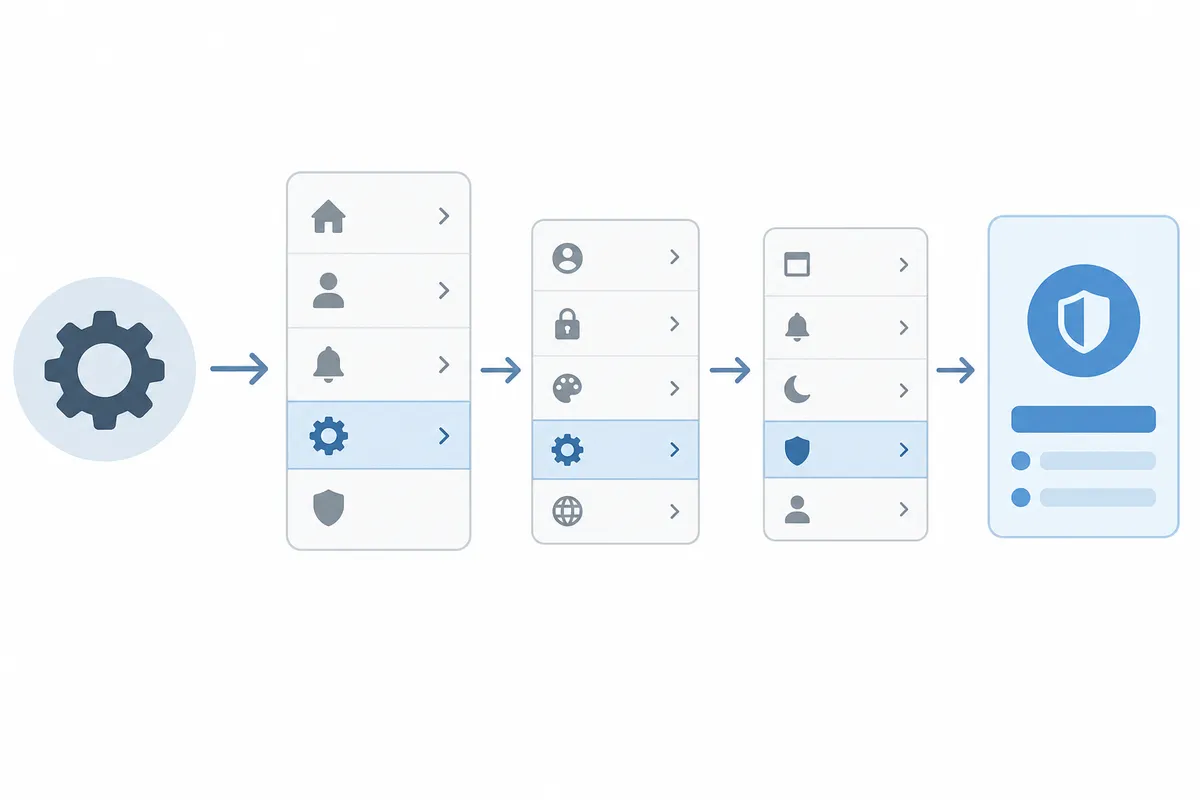
Step 1: Find the URL Mappings Panel
Go to Settings, then Developer Tools, then URL Mappings. If you learned Squarespace a while back, you may remember this living under Settings → Advanced → URL Mappings. Squarespace reorganized its menu in 2023 and moved page redirects into the Developer Tools group, where the setting still sits today. Don't let the "developer" label put you off, setting up a basic redirect doesn't require any coding knowledge.
Step 2: Gather Your Old and New URLs
Before you touch the panel, write down exactly what you need:
- The path of the page you're redirecting from, for example
/old-course - The path (or full URL) you're redirecting to, for example
/new-course - Whether this is permanent (301) or temporary (302)
Step 3: Write the Redirect Rule
Inside URL Mappings, enter your rule using this pattern:
/old-url -> /new-url 301
The arrow in the middle is just a hyphen followed by a greater-than symbol, typed on a standard keyboard. Squarespace reads it as a single arrow character. A real example might look like:
/weight-loss-tips -> /wellness-principles 301
A Squarespace 301 redirect can also point to your site's homepage, using a single forward slash as the destination:
/old-page -> / 301
Or it can send visitors off-site entirely, as long as you type the full address:
/my-old-courses -> https://example-training-site.com/courses 301
Step 4: Save and Test
Click Save in the top-left corner of the panel. Then open a private or incognito browser window, not your logged-in session. Visit the old URL to confirm it lands on the new page.
301 vs. 302 Redirects: Which Does Your Page Need
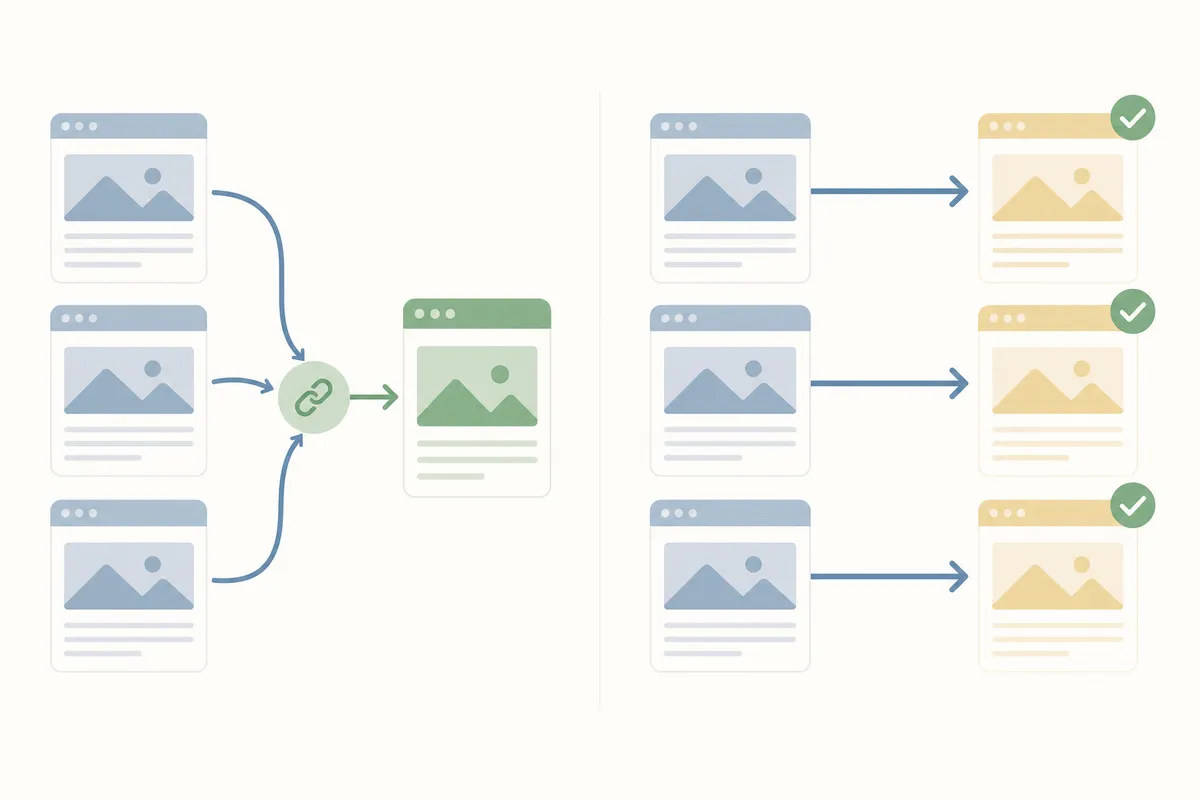
Picking the right status code matters more than it looks. A 301 tells Google and browsers the move is permanent, so link equity and rankings transfer to the new URL. A 302 tells them it's temporary, so search engines keep the original URL in their index. That split in how search engines treat the two codes lines up with Google's documentation on 301 redirects.
| Redirect type | Meaning | Use it when | Effect on SEO |
|---|---|---|---|
| 301 (Permanent) | Old page is gone for good | You deleted, renamed, or merged a page | Passes ranking signals to the new URL |
| 302 (Temporary) | Old page will come back | Seasonal pages, waitlists, maintenance | Search engines keep indexing the original URL |
| No redirect | Old page simply returns a 404 | You want visitors to see an error | Breaks the link; hurts user experience and crawl efficiency |
If you're not sure which one applies, default to a Squarespace 301 redirect whenever the old page isn't coming back. Save 302s for genuinely temporary situations, like swapping an enrollment page for a waitlist page during a launch window.
Getting this wrong is one of the easier ways to lose rankings during a cleanup. SearchBlueprint's guide on how to do a 301 redirect without losing your rankings covers the mechanics that matter most. That's especially true when the page you're redirecting actually ranks for something.
When Squarespace's Built-In Tool Is Enough, and When It Isn't
Squarespace's native URL Mappings panel is genuinely good for what it's built for. It's just not built for everything.
One URL vs. a Whole Site
If you're redirecting a handful of pages, the built-in panel is all you need. Think a renamed service page, a retired blog post, or a page from a business pivot. It's free, it's fast, and it lives right inside the dashboard you already use.
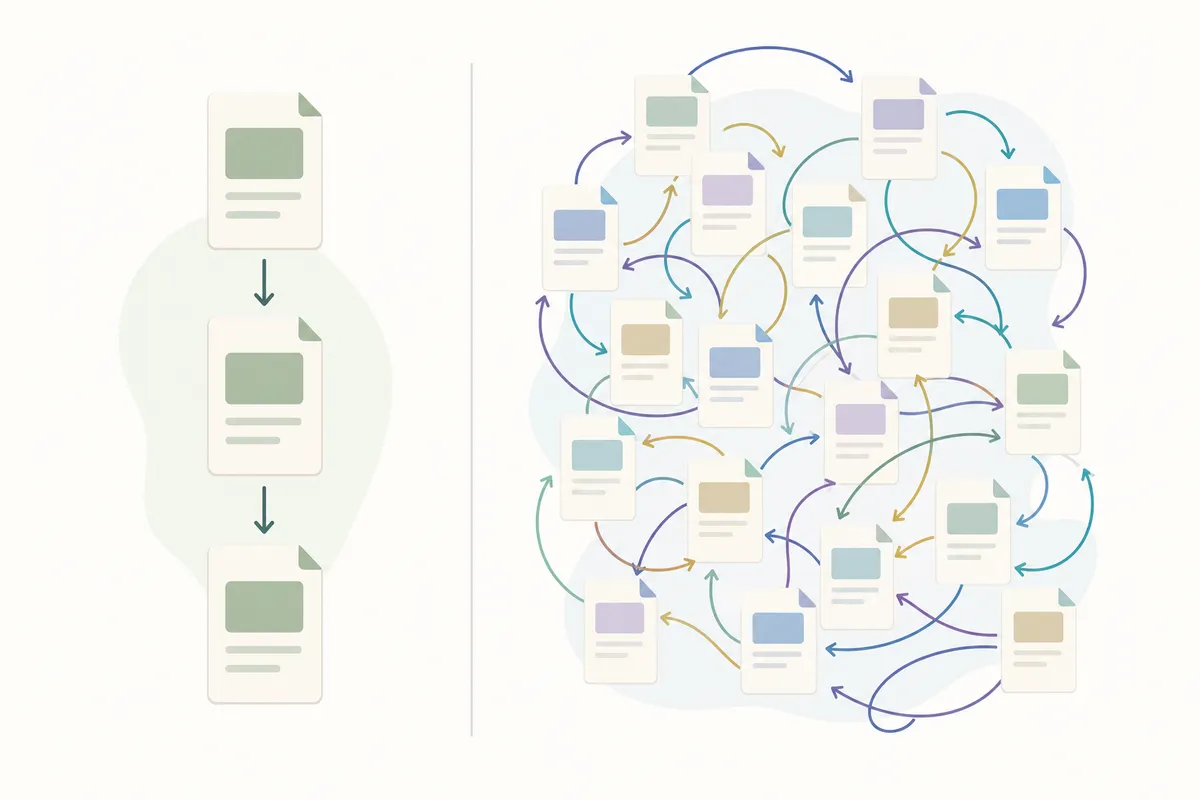
Where it struggles is scale. Squarespace's URL Mappings only matches exact paths, not wildcard patterns. So you can't write one rule to catch an entire folder of old URLs. If you're migrating from another platform and need to remap hundreds of blog posts or product pages. You'll be typing each rule out one at a time. One Squarespace consultant who documents her own setup notes her mappings list runs past 100 rows. There's currently no way to add comments or categories inside the panel to keep that list organized. Some site owners work around this by inserting fake, uppercase "header" rows as informal section dividers. That's a manual hack, not a built-in feature. You have to make sure those fake rows don't accidentally match a real URL on your site.
One-Off Fix vs. a Recurring Problem
A single broken link from a renamed page is a one-off fix, the native tool handles it fine. A recurring pattern is a different problem. Think a content team that keeps renaming URLs, or a site that regularly imports pages from elsewhere. At that point you're better served by a broader audit workflow that catches broken links before they pile up. That beats patching redirects one at a time after the fact.
If you manage sites on more than one platform, the logic for fixing a broken link is similar but the menus differ. SearchBlueprint's walkthrough on fixing a broken WordPress link with a 301 redirect is a useful side-by-side. It helps if you split your work between Squarespace and WordPress clients.
You might be weighing whether to add a third-party tool on top of Squarespace's native settings. If so, this comparison of Squarespace SEO plugins is worth reading before you add anything extra. Squarespace's platform restricts third-party code more than WordPress does. So "just install a plugin" isn't always an option here.
Common Mistakes That Break a Squarespace Redirect
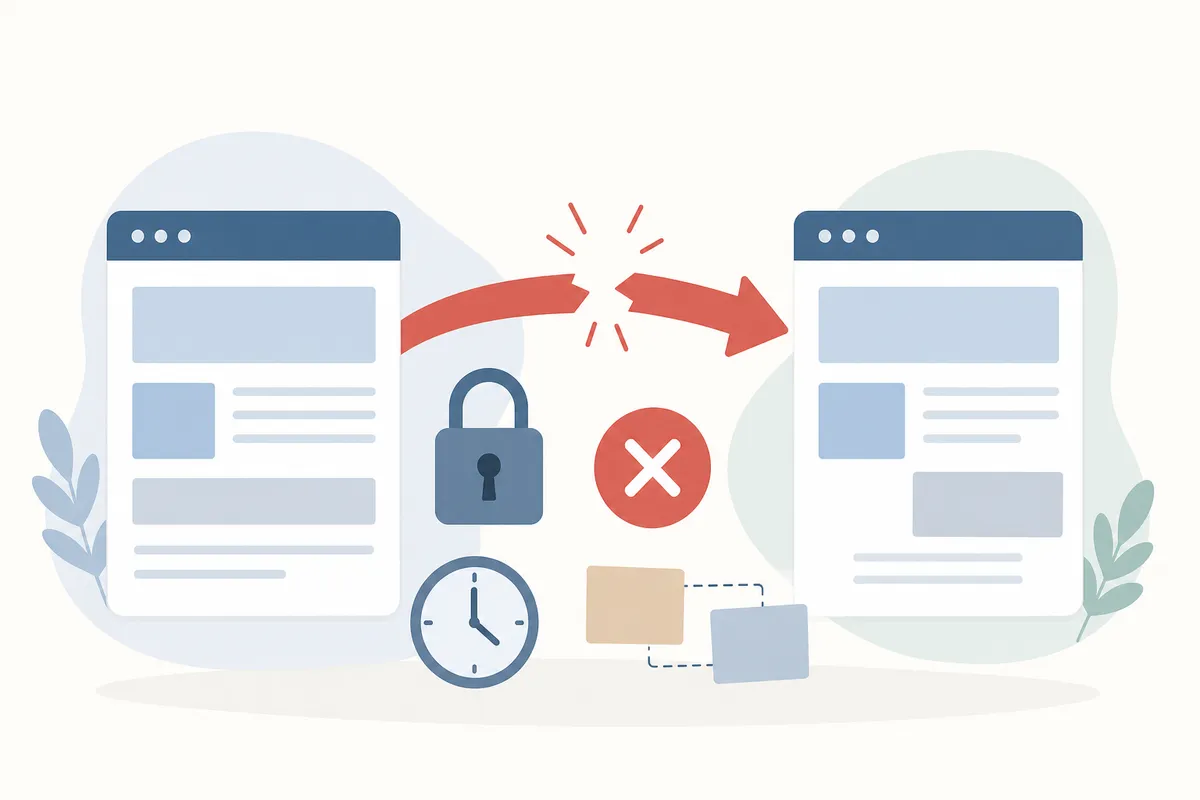
Most "my redirect isn't working" problems trace back to a short list of causes.
| Mistake | What you'll see | How to fix it |
|---|---|---|
| Old page still live | Old page loads normally, redirect never fires | Disable, unpublish, or delete the old page |
| Capitalization mismatch | Redirect fails silently | Match the exact case of your existing URLs, lowercase paths need lowercase rules |
| Testing within 2 minutes | A 404 page appears | Wait a couple of minutes between test attempts; it's a built-in loop-prevention safeguard |
| Conflicting rules | Wrong destination page loads | Remember that rows higher in the URL Mappings list take priority over ones below |
| Logged-in testing | Redirect behaves oddly or not at all | Test in a private or incognito window, never your logged-in admin session |
Of these, forgetting to retire the old page is the most common trip-up. A Squarespace 301 redirect rule can be saved correctly and still appear to do nothing. That happens if the original page is still published and reachable.
How to Test Your Redirect, and Make Sure It Protects Your Rankings
Testing a 301 redirect on Squarespace is straightforward, but two details trip people up: staying logged in, and testing too fast.
Always test in a private or incognito browser window. Your logged-in admin session can behave differently from what a normal visitor sees. That can make it look like the redirect isn't working when it actually is. Second, give it a couple of minutes between attempts on the same URL. Squarespace will show a 404 page if you hammer the same path repeatedly, as a safeguard against redirect loops. That's expected behavior, not a sign of a broken rule.
For a second check beyond Squarespace's own dashboard, run the live URL through a free redirect checker to trace the full chain. Confirm it resolves in one hop to a 200 status, not a long chain of redirects.
Getting the redirect right matters for more than tidiness. Google's own guidance on crawling and indexing treats 301s as the correct signal for a permanent move. That signal is part of how ranking value carries over to the new URL. Google Search Central's documentation on redirects covers this point too. A broken or missing redirect doesn't just inconvenience visitors; it can quietly cost you the rankings the old page had built up.
FAQs
How long does a Squarespace 301 redirect take to go live?
Most redirects start working almost immediately after you click Save. If a test attempt shows a 404 right after saving, wait a couple of minutes before retrying. Squarespace blocks rapid repeat requests to the same path as a loop-prevention measure. This can make a working redirect look broken for a moment.
Does a Squarespace redirect hurt my SEO rankings?
A correctly configured 301 redirect generally protects rankings rather than hurting them, since it tells search engines the content permanently moved. What causes ranking loss is skipping the redirect entirely or using a 302 where a 301 belongs. Leaving the old page live alongside the new one causes it too.
Can I redirect my entire Squarespace domain to a new domain?
Squarespace's URL Mappings panel is designed for page-level redirects, not whole-domain forwarding. For a full domain move, you'll typically need to work with your domain and DNS settings alongside individual page redirects. That's because the native tool only matches specific paths rather than an entire site at once.
Why isn't my Squarespace redirect working?
Check the usual suspects first: the old page is still published, or the capitalization doesn't match your actual URLs. You might be testing while logged in instead of in a private window. Or you could be retesting within two minutes and hitting the loop-prevention 404. A conflicting rule listed higher in the URL Mappings panel can also override the one you just added.
What's the difference between a 301 and 302 redirect in Squarespace?
A 301 marks the move as permanent and tells search engines to transfer ranking signals to the new URL. A 302 marks it as temporary, useful for seasonal pages or a course waitlist. Search engines then keep the original URL indexed, expecting it to return.
Check the Rest of Your Redirects While You're In There
Fixing one Squarespace 301 redirect is a five-minute job. Finding every old URL on your site that's quietly 404ing takes a proper look at the whole site. So does confirming your redirects actually carry ranking value instead of leaking it. Talk to the team and get a sample report. It shows exactly where your redirects and the rest of your Squarespace SEO setup stand.
Resources / References
Sources
About the author
SearchBlueprint researched, wrote and scored this article with the content pipeline our customers run on their own sites. The score in the byline is what our content engine gave this page before it published. Nothing here is reviewed by hand, which is the point: it is the product's output, published where anyone can check it.