Shopify 301 Redirect: The 5-Minute Fix for a Broken Link
By Toy Wen Da, Co-Founder · · 6 min read · scored 93/100
A Shopify 301 redirect sends shoppers and search engines from an old URL to a new one, permanently, so a deleted or renamed page doesn't turn into a dead-end 404. You set one up in your Shopify admin by pairing the old path with the new path. For a single broken link, the whole job takes under five minutes.
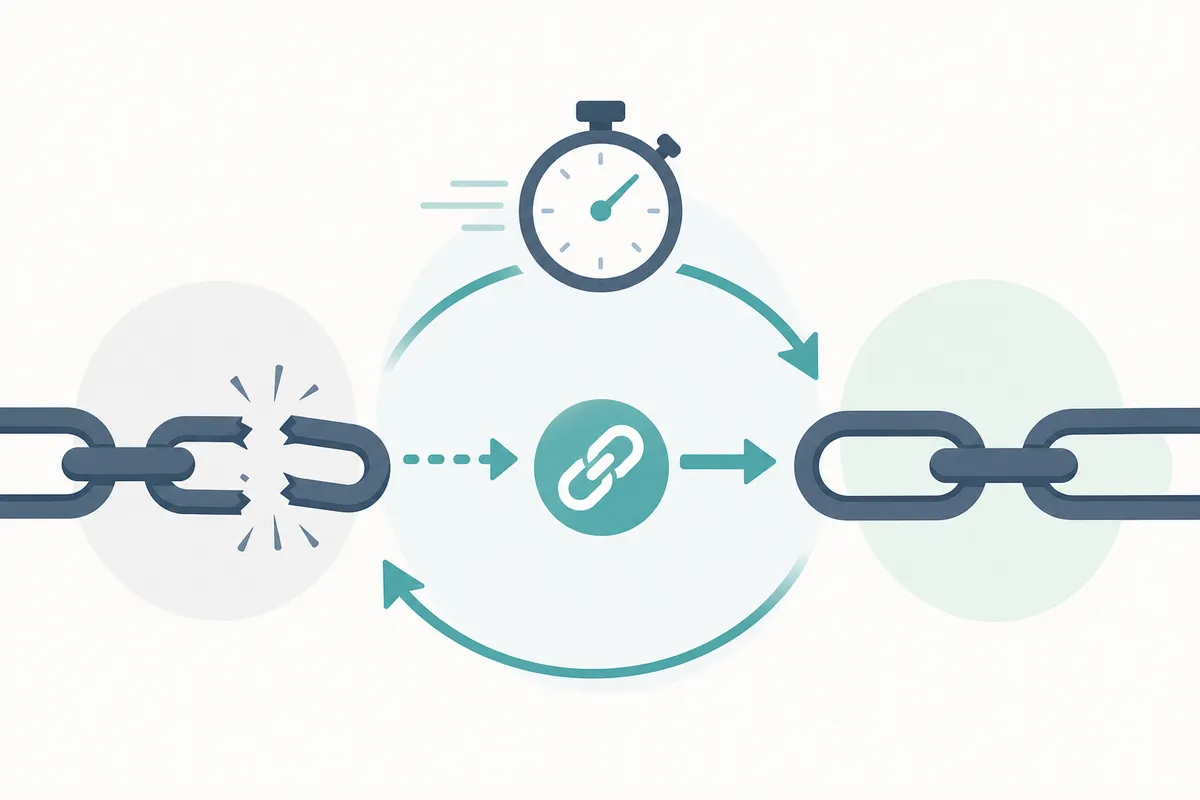
Before you touch anything, run the URL through SearchBlueprint's free Redirect Checker. Paste in the old link and it shows you whether Shopify is already redirecting it, where the chain ends up, and whether it's returning a true 301 or something weaker like a 302. That tells you in seconds whether you actually need to fix anything or whether the redirect is already working.
How to Set Up a Shopify 301 Redirect, Step by Step
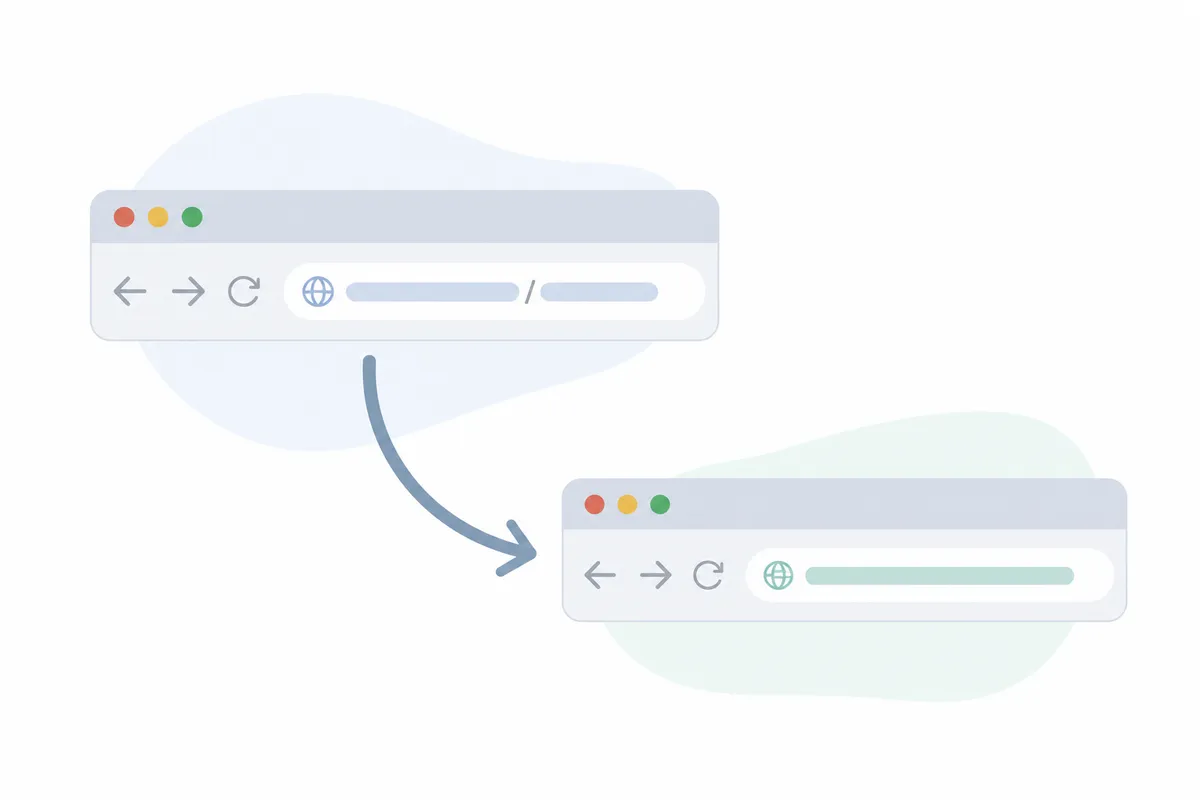
Step 1: Find the old and new paths
Open the broken link in a browser and copy everything after your domain name. If the old URL was yourstore.com/pages/contacts, the path you need is /pages/contacts. Do the same for the page you want visitors sent to instead, such as /pages/contact-us.
Step 2: Create the redirect in Shopify admin
Go to Online Store > Navigation, then click View redirects (older themes list this as URL Redirects). Click Create URL redirect, paste the old path into the "Redirect from" field, and the new path into "Redirect to." Save.
Step 3: Test it
Open the old URL in a private browser window. You should land on the new page instantly, with no visible intermediate screen. If it 404s or loops, double-check that you entered the path, not the full URL with https://yourstore.com in front of it, since Shopify expects the relative path only.
That's the entire manual process for one shopify 301 redirect. If you're also cleaning up on-page SEO at the same time, it's worth working through the settings in our Shopify SEO guide in the same sitting, since redirects and metadata changes often go hand in hand after a page restructure.
When Shopify's Built-In Tool Is Enough, and When It Isn't
Shopify's native redirect tool is genuinely good for what it's designed for: a handful of one-off URL changes. It gets shaky once the scope grows or the redirect needs to survive a bigger change, like a full domain switch.
One URL versus your whole site
If you deleted a single product or renamed one page, the admin panel is all you need. But if you're migrating from another platform, merging stores, or restructuring your entire URL pattern (say, moving every blog post from /blog/ to /blogs/news/), entering redirects one at a time in the admin becomes impractical past roughly a few dozen URLs.
A one-off fix versus a recurring problem
A single broken link is a one-off. But if you keep seeing 404s show up in Google Search Console week after week, that's a pattern, usually a theme that auto-generates URLs differently than your old site did, or a collection that gets reorganized on a schedule. That's worth fixing at the source, not patching redirect by redirect.
| Situation | Native Shopify tool | Better approach |
|---|---|---|
| One page renamed or deleted | Works well, a few minutes in admin | No change needed |
| Switching your store to a new domain | Works automatically | Turn on "Redirect all traffic to this domain" in Domains settings, which creates the 301s for every old URL at once |
| Migrating from WordPress, Wix, or another platform (hundreds of URLs) | Too slow one at a time | Bulk CSV import via Online Store > Navigation > Import redirects |
| Recurring 404s from a changing collection structure | Treats symptoms, not cause | Fix the URL pattern or theme setting causing it, then redirect once |
| Need redirects on rules or wildcards (e.g., every URL under a path) | Not supported natively | A redirect app from the Shopify App Store |
Shoppers on the Shopify Community forum who've migrated full domains confirm the "Redirect all traffic to this domain" option does create the 301s automatically,domainA.com/products/item becomes domainB.com/products/item without any manual mapping. The remaining step, which people often skip, is submitting the move through Google Search Console's change-of-address tool so Google knows to transfer ranking signals. Google's own documentation on site moves with URL changes covers this process in more depth.

Common Mistakes That Break a Shopify 301 Redirect
- Entering the full URL instead of the path. Shopify's redirect field wants
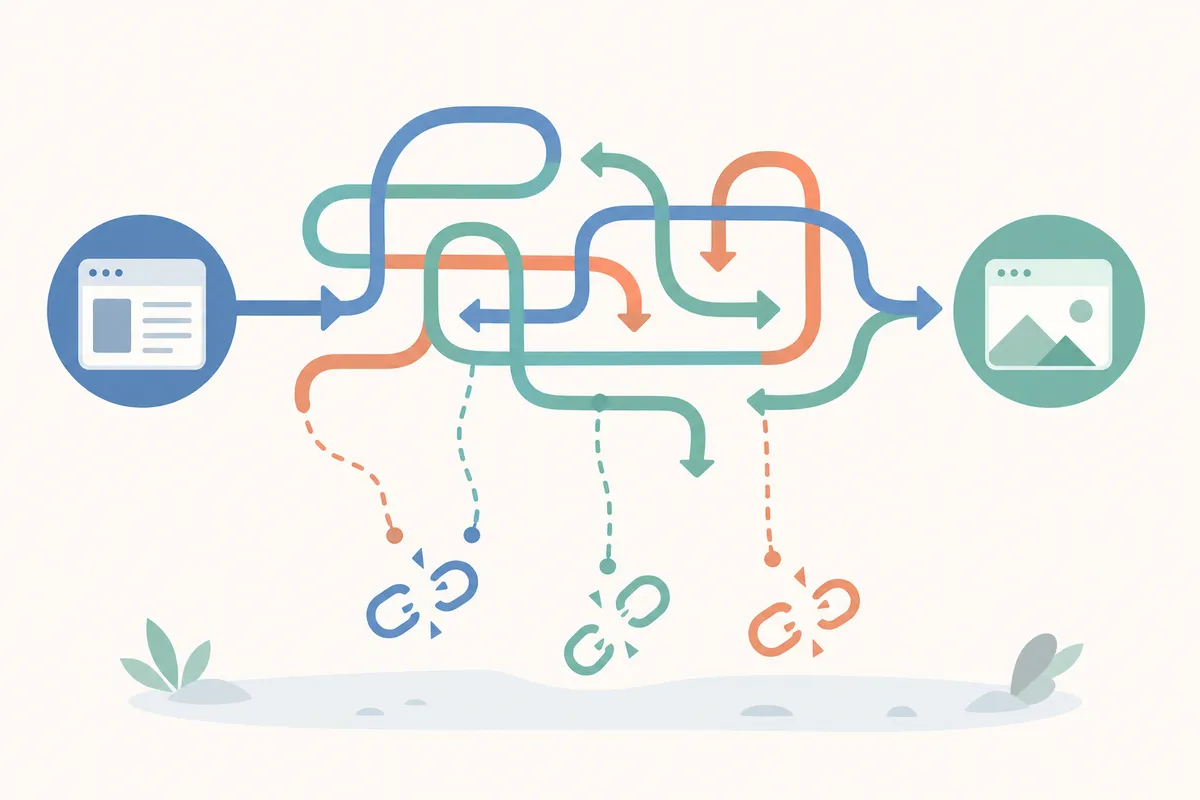
/pages/old-page, nothttps://yourstore.com/pages/old-page. A full URL usually just fails silently. - Redirecting to another redirect. Chaining A → B → C adds hops, slows the page, and can dilute the SEO value you're trying to preserve. Always point straight to the final destination.
- Forgetting internal links. The redirect works, but your own navigation, blog posts, or theme sections still link to the old path. Update those links instead of relying on the redirect to catch every click.
- Redirecting a whole category to the homepage. It avoids a 404, but tells Google nothing about relevance. Send shoppers to the closest matching page instead.
- Assuming a domain-level redirect fixed everything. It handles automatic 301s for existing paths, but new content you add after the switch still needs its own mapping if the structure changed.
If you're weighing whether a redirect is worth the SEO risk at all, our piece on doing a 301 redirect without losing your rankings walks through what actually transfers and what doesn't.
FAQs
Does a Shopify 301 redirect hurt my SEO rankings?
No, a properly configured 301 is the standard way to preserve ranking signal when a URL changes. Problems show up only when redirects chain through multiple hops, point to irrelevant pages, or get left in place for years after the real fix should have been made.
How long does a Shopify 301 redirect take to show up in Google?
Shopify applies the redirect to live traffic instantly. Google's index update is separate, expect anywhere from a few days to a few weeks depending on how often that URL gets crawled.
Can I bulk import redirects in Shopify?
Yes. Under Online Store > Navigation > View redirects, there's an import option that accepts a CSV with two columns: the old path and the new path. This is the practical option for migrations involving more than a few dozen URLs.
What's the difference between a Shopify 301 redirect and just connecting a new domain?
Connecting a domain changes where your store lives. Turning on "Redirect all traffic to this domain" in domain settings is what actually creates the 301 redirects, mapping every old-domain path to the matching new-domain path.
Why does my Shopify redirect still show a 404?
Usually the old path was entered with the wrong formatting, the redirect wasn't saved, or there's a caching delay in your browser. Test in a private window, and confirm the "Redirect from" field matches the broken URL's path exactly, including any trailing slash.
Fix the Link, Then Check Your Work
Open your Shopify admin now, create the Shopify 301 redirect for the URL that's currently broken, and run it back through the Redirect Checker to confirm it resolves cleanly to a single 301. If you're dealing with more than a handful of broken links, or you want a full picture of what else is costing you rankings, talk to the team and get a sample report on exactly what's fixable on your store.
Resources / References
Sources
About the author
SearchBlueprint researched, wrote and scored this article with the content pipeline our customers run on their own sites. The score in the byline is what our content engine gave this page before it published. Nothing here is reviewed by hand, which is the point: it is the product's output, published where anyone can check it.