How to Edit Google Business Profile: Fields, Steps, Delays
By Toy Wen Da, Co-Founder · Updated · 6 min read · scored 98/100
To edit a Google Business Profile, sign in to the Google account that manages it, search your business name on Google or open the Maps app, select your listing, and choose "Edit profile." From there you can update hours, address, phone, photos and services directly, though sensitive fields like name or category may trigger a review before they go live.

Who can edit a Google Business Profile
Confirm your permission level before you change anything. Google splits Business Profile access into three roles, and only two of them allow edits.
| Role | Can edit the profile? | What they can do | Typical use case |
|---|---|---|---|
| Owner | Yes | Full control: edit any field, add or remove managers, delete the listing | Business founder or primary admin |
| Manager | Yes | Edit most fields, respond to reviews, post updates | Marketing lead, agency, or staff member |
| Site manager | No | View-only access to some reporting; cannot edit profile details | Limited internal visibility, not day-to-day editing |
If you were just added as an owner or manager, Google can take up to 14 days to give you full direct-editing options on Search and Maps. Business Profile Manager still works during that window, so you are not locked out, only routed through a different door.
How to edit your Google Business Profile step by step
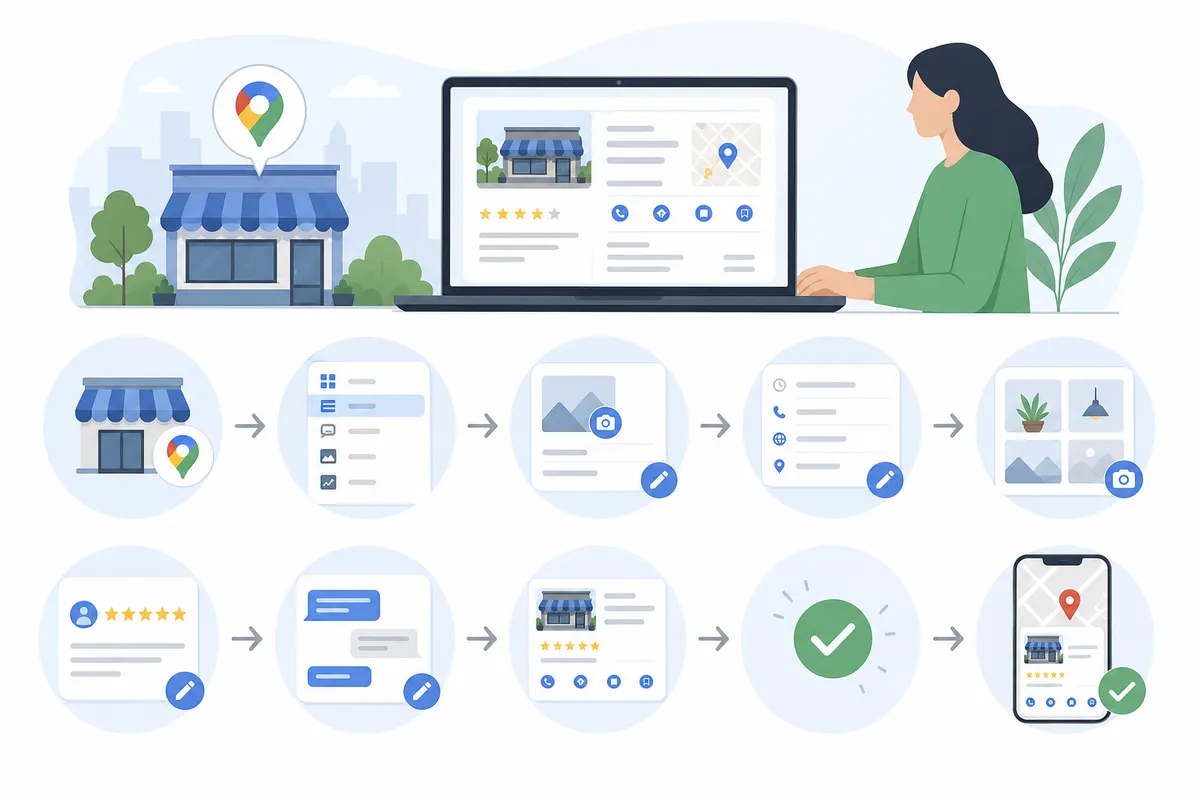
The process is nearly identical across devices, but the entry point differs.
On desktop (Google Search)
- Sign in to the Google account tied to your profile.
- Search Google for your exact business name, or search "my business."
- Click View profile if it doesn't open automatically.
- In the menu above the results, select Edit profile, Promote or Customers.
- Update the relevant section (Business info, Hours, Photos or Services) and save.
On Android or iPhone (Google Maps app)
- Open the Google Maps app and sign in to the same Google account.
- Tap your profile icon in the top right, then select your Business Profile.
- Choose Edit or Add photo, then pick the field you want to change.
- Save the update. Most changes on mobile sync the same way they do on desktop.
Using Business Profile Manager
If you are a brand-new manager still inside the 14-day waiting period, or you manage several locations, Business Profile Manager is the backup route. It is also where you mark a location "permanently closed" or reopen one, which Search and Maps won't let you do directly.
What you can change yourself

Not every field behaves the same way once you edit your Google Business Profile. Some updates go live in minutes, while others get flagged for review because they affect how customers find or trust your listing.
| Field | How to edit it | Review risk |
|---|---|---|
| Hours (regular or holiday) | Edit profile > Hours | Low, updates almost instantly |
| Phone number | Edit profile > Business info | Low |
| Photos and menus | Edit profile > Photos | Low |
| Address | Edit profile > Business info | Medium, can trigger a verification check, especially for a full relocation |
| Business name | Edit profile > Business info | Medium to high, Google checks name consistency against outside sources |
| Primary category | Edit profile > Business info | Medium, category changes affect which searches you show up in |
| Attributes (payment types, accessibility, dining options) | Edit profile > About | Low |
Keeping these fields current matters. Google has said that a large share of people who run a local search on their phone go on to visit a related business within a day, so an outdated address or wrong phone number has a real cost. When your category needs attention specifically, this guide on fixing Google Business Profile categories fast walks through the exact reclassification steps.
Why some edits take longer than others
Google reviews certain changes before publishing them because they are common routes for spam and hijacked listings. A stranger renaming your storefront or moving your pin across town does real damage, so name, address and category edits get the most scrutiny. Google's own search documentation stresses that accurate, consistent business information helps both search systems and users trust a result, which is part of why these checks exist (see Google Search Central).
If your listing has recently disappeared from Maps or Search entirely, an edit alone won't fix it, because something else is usually going on. This breakdown of why a Google Business Profile disappears and what to do instead covers the most common causes.
A lower-risk option for sensitive fields
Some managers report that using the "Suggest an edit" button on Google Maps, rather than editing inside their own owner or manager account, gets category and detail changes approved quickly without putting the listing's verification at risk. It is not an official guarantee, but it is a reasonable fallback if you are nervous about a name or category change destabilizing a hard-won verified listing.
FAQs
How do I access my Google Business Profile to make changes?
Sign in to the Google account linked to the listing, then search your exact business name on Google or open Google Maps and tap your profile icon. Select "View profile," then "Edit profile" to reach every editable section.
How do I edit my Google Business Profile on my phone?
Open the Google Maps app on Android or iPhone, sign in, tap the account icon in the top right, open your Business Profile and choose Edit. The available fields match what you would see on desktop.
Why can't I edit my Google Business Profile yet?
If you were recently added as an owner or manager, Google can take up to 14 days to open direct editing on Search and Maps. Use Business Profile Manager in the meantime, since it works immediately.
Can a site manager edit a Google Business Profile?
No. Site manager is a view-only role, and only accounts with owner or manager permission can change profile details on Search and Maps.
Will editing my business name or address get my listing suspended?
It can trigger a re-verification check rather than an outright suspension, particularly for a full address move or a name that doesn't match outside records. Changing attributes, hours or photos carries much lower risk.
Put your profile on a schedule, not a one-off fix
One round of edits doesn't finish the job. Hours, categories and photos drift out of date the moment something in the business changes, and a stale listing quietly loses the local searches that matter most. Talk to the team and see what a sample SEO report looks like for a profile like yours.
Resources / References
Related reading: How to Manage Multiple Locations in business.google.com.
Related reading: How to Delete a Google Business Profile (And When Not To).
Sources
About the author
SearchBlueprint researched, wrote and scored this article with the content pipeline our customers run on their own sites. The score in the byline is what our content engine gave this page before it published. Nothing here is reviewed by hand, which is the point: it is the product's output, published where anyone can check it.