Sitemap Could Not Be Read: 7 Fixes That Actually Work
By Toy Wen Da, Co-Founder · · 6 min read · scored 92/100
If Google Search Console shows "Sitemap could not be read," it usually means Google's crawler couldn't successfully fetch or parse the file at the URL you submitted, because of a bad URL, a server block, a formatting error, or sometimes a temporary glitch on Google's side. In most cases you can fix it in minutes once you know where to look.
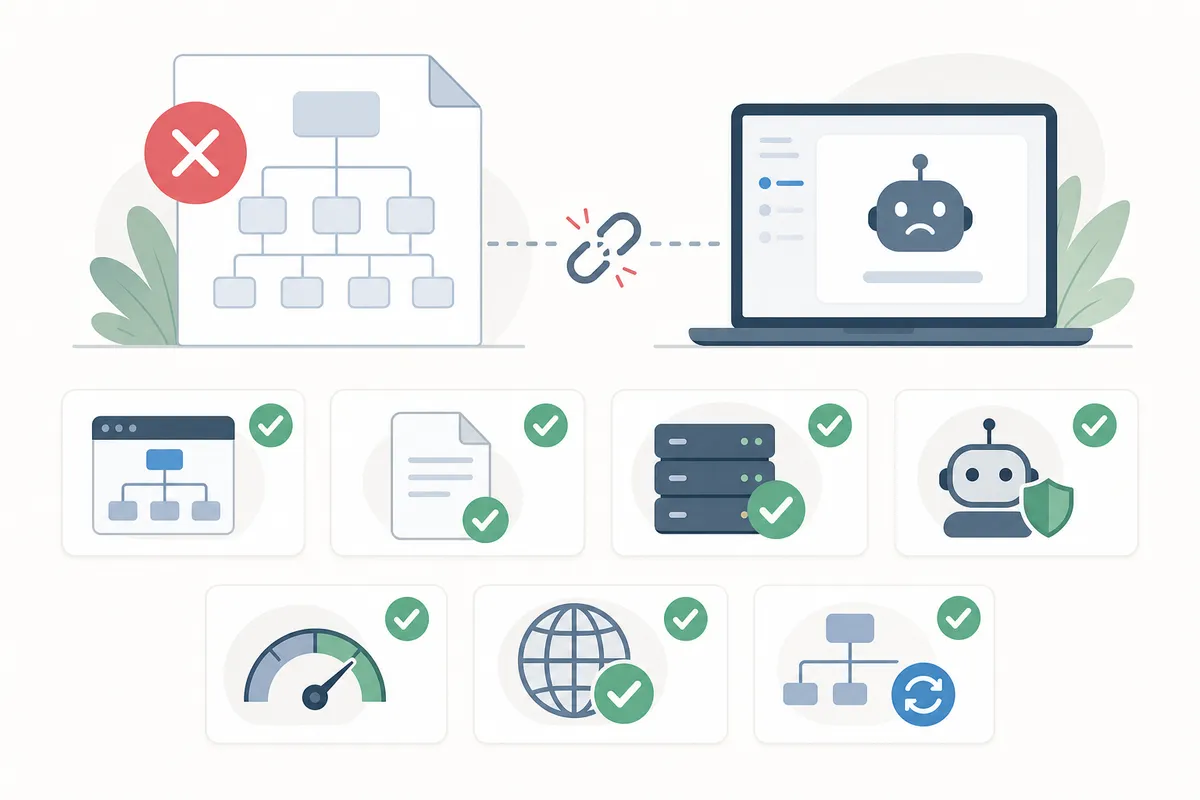
What "Sitemap Could Not Be Read" Actually Means
Google Search Console's Sitemaps report shows two closely related error states: "Couldn't fetch" and this one. Both mean Googlebot tried to request your sitemap file and either got no usable response or got a response it couldn't parse as valid XML. It's not a penalty, and it doesn't directly affect your rankings. But it does block Google from using the sitemap as a discovery and crawl-priority signal, which can slow down indexing for new or updated pages.

Common Causes of the "Could Not Be Read" Error

Most cases trace back to one of a handful of root causes. Before you start changing settings, run your sitemap URL through a free sitemap checker to see exactly what Googlebot would see, a wrong URL, a redirect, or broken XML usually shows up immediately.
| Cause | What It Looks Like | How to Confirm | Typical Fix |
|---|---|---|---|
| Wrong sitemap URL submitted | Typo, wrong subdomain, or pointing to the wrong environment | Open the exact URL in a private browser window | Resubmit the correct, full URL |
| Server or firewall blocking Googlebot | Sitemap loads for you but not for Google | Check server logs for Googlebot's user agent being denied | Allow Googlebot in firewall/CDN rules |
| robots.txt disallowing the path | Sitemap directory blocked | Review robots.txt for a Disallow rule covering the sitemap | Remove the block or move the file |
| Malformed XML or wrong file type | Extra characters, missing closing tags, HTML returned instead of XML | Validate with an XML or sitemap checker | Fix syntax, re-export, resubmit |
| File too large or too many URLs | Sitemap exceeds 50MB uncompressed or 50,000 URLs | Check file size and URL count | Split into multiple sitemaps with a sitemap index |
| Temporary Google-side glitch | Sitemap returns 200, validates clean, still shows the error | Re-check after 24-48 hours | Resubmit; often resolves without any change |
How to Fix a Sitemap That Can't Be Read
Check the URL and the HTTP Status
Start simple. Paste your submitted sitemap URL into a browser. It should load instantly and return clean XML, not a login page, a 404, or a redirect chain. Then confirm the server response code is a plain 200, a tool like httpstatus.io or your browser's network tab will show this. A 301 redirect to a different URL is a frequent, overlooked cause: Google sometimes won't follow it the way you'd expect.
Check robots.txt and Server Access
If the sitemap loads fine in your browser but still won't fetch, something may be blocking Googlebot specifically, not visitors generally. Open your robots.txt file and make sure no rule disallows the sitemap's folder. Also check whether a firewall, bot-protection service, or staging password is quietly blocking crawlers while letting humans through.
Validate the XML Structure
Even one unescaped ampersand or an unclosed tag can make an otherwise fine-looking sitemap unreadable to Google. Run the file through an XML validator or a sitemap-specific checker, since generic validators sometimes miss sitemap-protocol issues that a purpose-built tool catches.
Resubmit and Give It Time
Once you've confirmed the URL, status code, and XML are clean, remove the old sitemap entry in Search Console and resubmit it fresh rather than just waiting. Google's own crawling and indexing documentation notes that sitemap processing isn't instant, and reprocessing can take anywhere from a few hours to a couple of days.
When It's a False Alarm
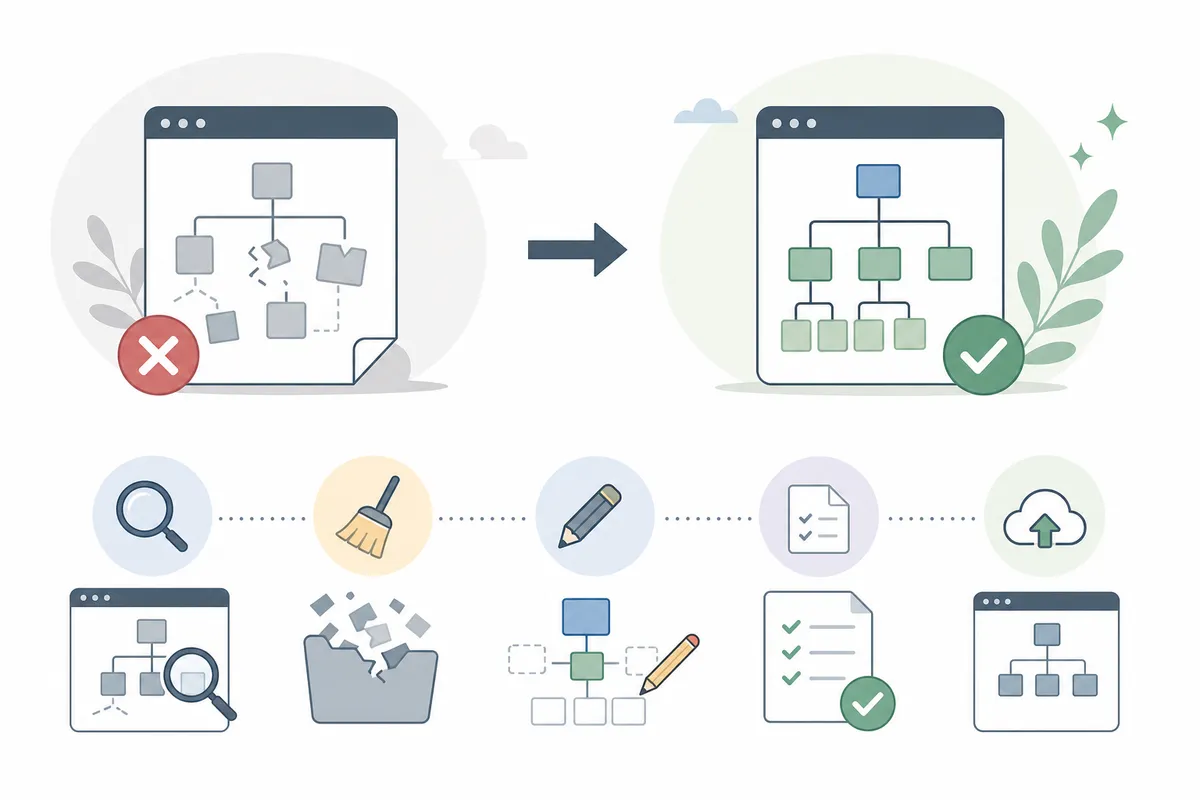
Search for this error and you'll find it's a frequent complaint: site owners confirm their sitemap returns a 200 status, passes validation, and still see the same message in the report. One widely discussed Google Search Central Community thread describes exactly this, a valid sitemap, confirmed working, still flagged as unreadable. Several Shopify merchants have reported the same pattern lasting weeks, with pages being de-indexed and manual URL submissions returning "No referring sitemaps detected" even after resubmitting multiple times.
If you've genuinely confirmed the URL, status, and XML are correct, the error can be a reporting lag rather than a real problem. Resubmit, wait 48 hours, and check again before assuming something on your end is broken.
Can You Fix This Yourself?
Yes, you can fix this error yourself in most cases. Checking a URL, reading an HTTP status code, and validating XML don't require a developer, a free checker tool does the technical lifting. Where it's worth bringing in help: large e-commerce catalogs with auto-generated sitemaps, multi-CDN setups where you can't easily tell who's blocking Googlebot, or cases where the error persists for more than a week despite a clean, confirmed sitemap. At that point, someone who can read your full Search Console report alongside server logs, and knows how to read an SEO report without just guessing, will spot what's easy to miss from inside one dashboard.
FAQs
Why does Search Console say "sitemap could not be read" even though my sitemap works fine?
This usually means your sitemap genuinely returns a 200 status and valid XML, but Google's crawler hit a temporary issue, a timeout, a blocked user agent on one request, or a reporting delay. It's a documented, recurring complaint in the Google Search Central Community, and resubmitting after 24-48 hours often resolves it without any file changes.
Does this error hurt my rankings?
Not directly. A sitemap is a discovery aid, not a ranking factor. But if it stays broken, new or updated pages may get crawled and indexed more slowly, which can delay rankings for fresh content.
How long does Google take to re-fetch a sitemap after I fix it?
There's no fixed guarantee, but most sites see the status update within a day or two of resubmitting a corrected sitemap.
Can a robots.txt file cause "sitemap could not be read"?
Yes. If robots.txt disallows the folder your sitemap lives in, or disallows the sitemap file itself, Googlebot may be unable to fetch it even though the URL loads fine in a browser.
What's the difference between "couldn't fetch" and "sitemap could not be read"?
They're closely related fetch-level errors shown in the same Search Console report. "Couldn't fetch" typically points to a connection or access problem; "could not be read" more often points to a parsing issue once the file was reached. Both get fixed with the same checks: URL, status code, robots.txt, and XML validity.
Get Your Sitemap Status Checked Properly
A sitemap that "could not be read" is almost always fixable once you know whether it's a URL problem, a block, a syntax error, or just Google catching up. If you want a second set of eyes on your sitemap and the rest of your site's technical health, talk to the team and get a sample SEO report built around your own site.
Related reading: wp-sitemap.xml: How to Find, Read and Fix Yours.
Sources
About the author
SearchBlueprint researched, wrote and scored this article with the content pipeline our customers run on their own sites. The score in the byline is what our content engine gave this page before it published. Nothing here is reviewed by hand, which is the point: it is the product's output, published where anyone can check it.