GoHighLevel Reputation Management: A Step-by-Step Setup
By Toy Wen Da, Co-Founder · · 7 min read · scored 93/100
GoHighLevel reputation management is the built-in toolset for requesting, tracking, and responding to customer reviews from inside your sub-account. The first move is opening the Reputation section and linking your Google Business Profile. Then switch on an automated review request so new reviews start arriving without you chasing anyone.

If reviews are only part of the story, say a business's map pack ranking or profile visibility is also weak, that's a local SEO issue, not a review-request issue. It's worth checking that separately before you decide how much of this to automate inside GoHighLevel.
What Reputation Management Means Inside GoHighLevel
Inside a GoHighLevel sub-account, reputation management is a dedicated module, not a generic marketing feature. It sits under its own section in the left sidebar, usually labeled "Reputation" or "Reputation Management" depending on the agency's white-label setup.
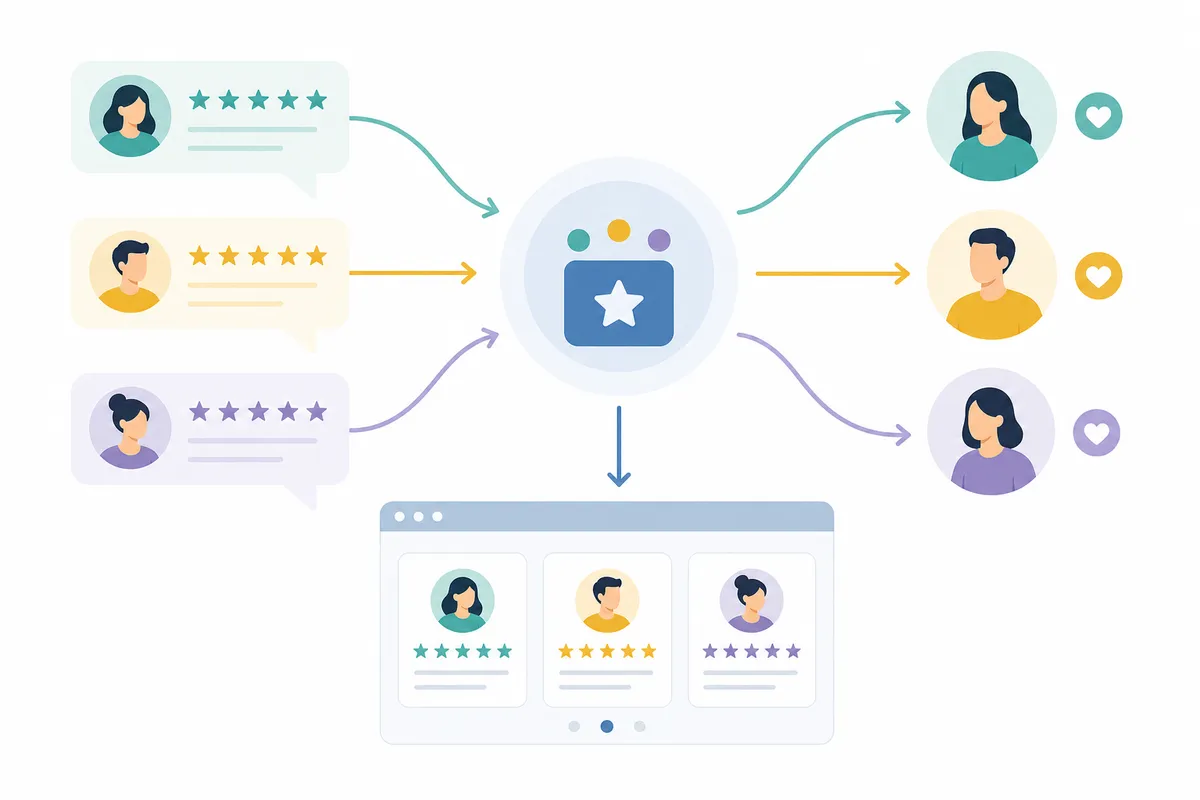
The module does three jobs. It sends review requests to customers. It pulls in reviews that are already posted so you can read and reply to them in one place. And it displays those reviews on your site through a widget. That's the whole scope. It doesn't rewrite bad reviews, doesn't contact review sites on your behalf, and doesn't touch rankings directly.
Why This Matters More Than It Sounds
A steady stream of recent, positive reviews does two things at once. It reassures a buyer comparing you against competitors. And it signals activity to Google, which factors review recency and volume into local ranking. Neither effect shows up overnight. Reputation management in GoHighLevel is a maintenance habit, not a one-time fix for an existing problem.
If the actual issue is an old negative result still ranking on page one, that's a different job. You're looking at SEO reputation management to outrank bad results rather than a review-request workflow.
How to Set Up Reputation Management in GoHighLevel
Follow these steps inside the sub-account you're configuring. Labels can vary slightly by agency white-label, but the structure below holds across most GoHighLevel accounts.
Step 1: Open the Reputation Section and Connect Your Profiles
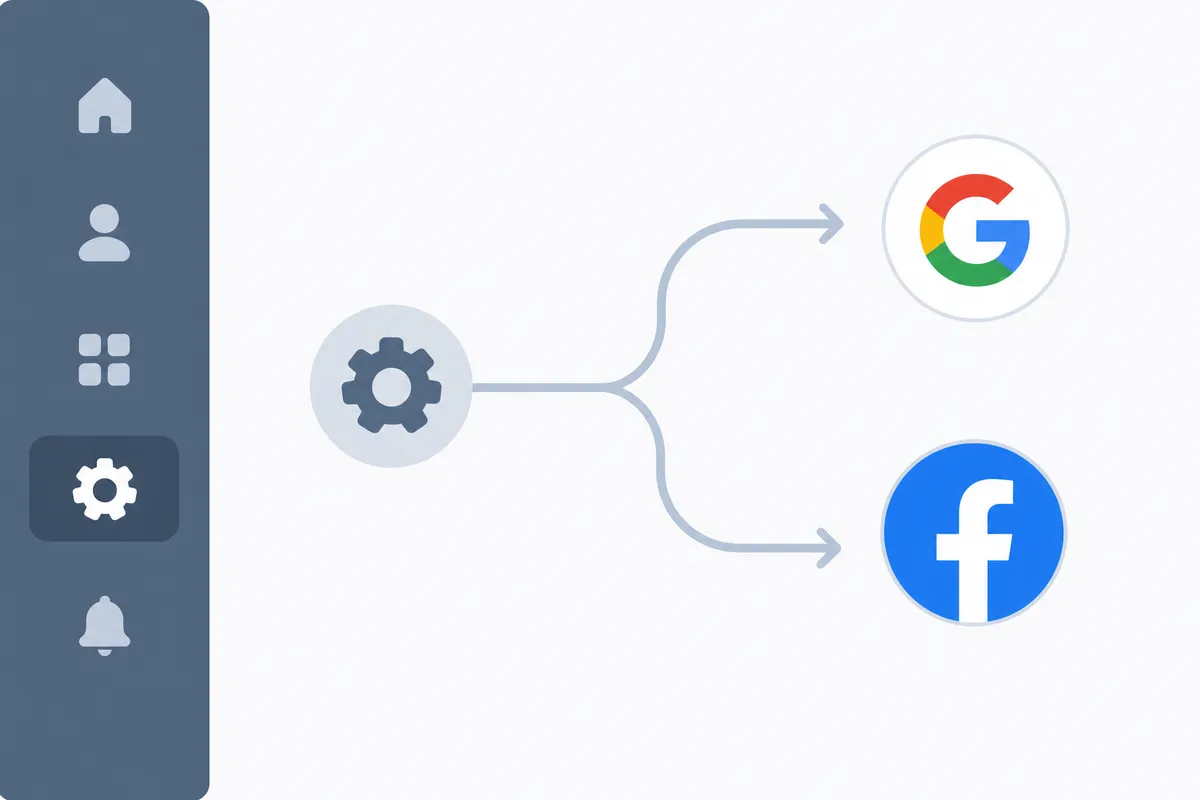
Go to the Reputation section in the left sidebar, then open Settings. From there, connect your Google Business Profile and, if relevant, your Facebook Page. Both need to authorize through their own login screens. GoHighLevel can't pull reviews without that connection being live.
Step 2: Set Up an Automated Review Request
Inside Reputation, find the Requests tab and create a new review request campaign. You can trigger it manually for a single contact. More useful long term is attaching it to a workflow, so it fires automatically a set number of hours or days after a job is marked complete, an invoice is paid, or an appointment ends.
Pick the channel. SMS tends to get opened faster, though automated text messages need the recipient's prior consent under US telecom rules. Email gives more room for personalization, and carries its own commercial-email requirements, like an opt-out link. Many setups send both, a few days apart, to the same contact.
Step 3: Monitor and Respond to Incoming Reviews
Once reviews start landing, they show up inside the Reviews tab, pulled in from each connected profile. Reply from there rather than switching to the Google Business Profile app. It saves time and keeps a record inside the CRM tied to that contact.
Respond to negative reviews quickly and without defensiveness. A short, specific, non-generic reply does more for a prospective customer reading it later than it does for the original reviewer.
Step 4: Add the Review Widget to Your Website
In the Widgets tab, generate the embed code and drop it into your site's page builder. That could be GoHighLevel's own site tool or a page built elsewhere. The widget pulls your current star rating and a rotating selection of recent reviews, so it updates on its own as new ones come in.
If the site itself is running on GoHighLevel's blog and page tools, it's worth knowing how that setup handles publishing SEO content through GoHighLevel. The review widget and your blog content are competing for the same visibility.
When GoHighLevel's Tools Are Enough, and When They're Not

This is the honest part. GoHighLevel's reputation tools are genuinely good at the job they're built for. They generate new reviews on one or two profiles and make them visible on your site. They're not built to manage a reputation problem that spans the whole web.
| Situation | GoHighLevel handles it | You need something broader |
|---|---|---|
| Growing reviews on one Google Business Profile | Yes, built for exactly this | , |
| Automating requests after every job or sale | Yes, via workflow triggers | , |
| A single old negative article or review ranking on Google's first page | No | Yes, content and SEO work to outrank it |
| Managing reviews across many locations or franchises | Partially, depends on plan and setup | Yes, for consistency and reporting at scale |
| Reviews scattered across Yelp, BBB, industry-specific directories | Limited, only connects to Google and Facebook | Yes, for full-directory coverage |
| A one-off bad review from a specific incident | Yes, reply and move on | , |
The pattern is simple: one profile, one ongoing habit, GoHighLevel covers it. A whole-site problem, a recurring multi-location mess, or a search result that needs to be pushed down is a different story. That's a bigger SEO job than a review-request tool was ever meant to solve.
Common Mistakes to Avoid
- Sending requests to everyone, including unhappy customers. Filter out anyone who's already complained before the automated request goes out. A GoHighLevel workflow trigger can skip them based on a tag or pipeline stage.
- Leaving the Google Business Profile connection unverified. If the authorization expires, requests still look like they're sending, but reviews stop syncing in silently.
- Treating one review burst as a fix. A spike after a launch fades. The automation needs to keep running, tied to every closed job, not just an initial push.
- Ignoring negative reviews instead of replying. An unanswered bad review reads worse than one with a calm, specific response under it.
- Forgetting the widget ever existed. It's easy to set up once and never check that it's still rendering correctly after a site redesign.
Small businesses juggling this alongside everything else often end up running SEO management without an agency's monthly bill. It's really the same instinct: doing the recurring maintenance work in-house instead of outsourcing it.
The Federal Trade Commission has made clear that soliciting or posting fake reviews is a legal risk, not just a marketing mistake. That's a useful reminder: review requests should go to real customers only, never to anyone being paid or pressured to leave one. Google enforces a similar rule against fake or incentivized reviews in its own content policies, so the same caution applies to anything posted on a Google Business Profile. See the FTC's review and endorsement guidance for the specifics.
FAQs
Is GoHighLevel's reputation management feature free?
It's included in a standard GoHighLevel subscription rather than billed separately, though SMS and email sending still draw from your account's usage credits. There's no extra license fee for the Reputation module itself.
Can GoHighLevel remove a bad review?
No. GoHighLevel can't delete or edit a review on Google or Facebook. Only the review platform or the reviewer can do that. What it can do is help you reply to it and keep newer, positive reviews flowing in alongside it.
Does GoHighLevel's reputation management work with Yelp?
Review requests and the review widget are built around Google Business Profile and Facebook. Yelp and most industry-specific directories aren't part of that native connection, so those need to be managed separately.
How do I add the review widget to a page that isn't built in GoHighLevel?
Copy the embed code from the Widgets tab and paste it into an HTML or custom code block on whatever platform hosts the site. Most page builders, including GoHighLevel's own tool, support this. The site still needs basic structure to render it correctly, which is worth understanding if you're new to what a CMS actually does.
Can agencies white-label GoHighLevel's reputation management for clients?
Yes. Agencies on a plan that supports white-labeling can rename the module and send requests from the client's own branding. They can present the whole reputation management workflow as part of their own service.
Put This on Autopilot This Week
Start with the Reputation section, connect your Google Business Profile, and build one workflow that fires a review request after every completed job. That single automation does more for ongoing GoHighLevel reputation management than any manual follow-up habit will. If map pack visibility or a damaged search result is the bigger worry, that's worth checking separately from reviews. Talk to the team by pulling a sample SEO report to see where the rest of your search presence actually stands.
Resources / References
About the author
SearchBlueprint researched, wrote and scored this article with the content pipeline our customers run on their own sites. The score in the byline is what our content engine gave this page before it published. Nothing here is reviewed by hand, which is the point: it is the product's output, published where anyone can check it.