Your Squarespace Sitemap: Where to Find It and Fix It
By Toy Wen Da, Co-Founder · Updated · 6 min read · scored 94/100
Every Squarespace site has a sitemap, and you don't have to build one. Squarespace generates it automatically at yourdomain.com/sitemap.xml, updates it whenever you publish or unpublish a page, and lets you keep individual pages out of it with a visibility toggle. The real work is checking that it lists the right pages and getting it in front of Google.

What a Squarespace sitemap is
A sitemap is an XML file that lists every indexable URL on your site, so search engines know what exists and when it last changed. Squarespace handles it for you: there's no plugin, no settings panel and no file to upload. Publish a page, blog post or product and it goes into the file; unpublish it and it drops out on the next refresh.
On WordPress or a custom-built site you often install a plugin or write the file yourself. Squarespace works differently because the sitemap is a byproduct of how you structure the site, with page visibility, navigation settings and the "hide this page from search engines" checkbox all feeding into it directly.
How to find your Squarespace sitemap URL

The address is always https://yourdomain.com/sitemap.xml. Open it in any browser and you'll see raw XML: a list of <url> tags, each with a <loc> (the page address) and a <lastmod> date for when it last changed.
If the raw XML is hard to read, a free sitemap checker will fetch the file and list every URL in a readable format. It's the quickest way to confirm that a page you just published is in there, or to spot pages that shouldn't be.
When you look at the file, check three things:
- Is the URL reachable? If
sitemap.xmlreturns a 404, your domain or SSL setup likely has a problem, so fix that first. - Does the page count look right? Compare it with the number of pages, posts and products you actually have live.
- Are old or deleted pages gone? They should drop out shortly after being unpublished.
How to submit your Squarespace sitemap to Google Search Console
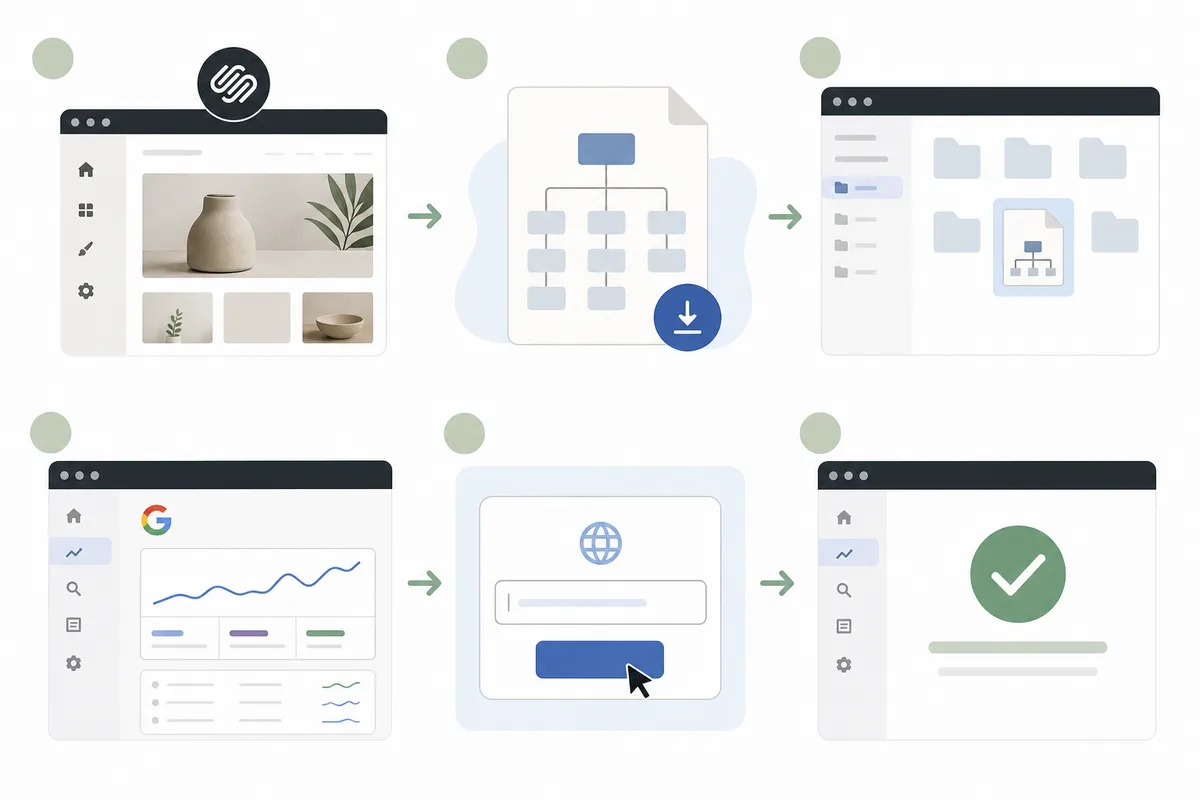
The sitemap exists without any setup, but Google won't know to look for it until you submit it in Google Search Console. You only need to do this once per property.
- Verify your site in Google Search Console. Add it as a property using the URL-prefix option with your full address, including
https://andwwwif that's how your site loads. The domain-level option needs a DNS record that most site owners don't need to set up. - Confirm ownership. Squarespace supports verification through a meta tag added in Settings > Advanced > Code Injection, or through your domain provider's DNS records if you manage the domain there.
- Open the Sitemaps report from the left-hand menu in Search Console.
- Under "Add a new sitemap," type
sitemap.xmlafter your pre-filled domain and click Submit. - Check the status after a few days. Search Console shows how many URLs were discovered versus indexed.
You don't need to resubmit each time you publish, because Squarespace keeps the file updated and Google periodically re-crawls sitemaps it already knows about. According to Google's documentation, a sitemap tells search engines about pages that might otherwise be missed, which matters most for sites whose pages aren't well linked internally. Smaller Squarespace sites with shallow navigation often fit that description (Google Search Central).
How to exclude pages from your Squarespace sitemap
You can't edit the sitemap file directly, but two settings on each page control what goes into it.
Hide the page from navigation and search
Open the page's settings (the gear icon in the Pages panel) and toggle it to Hidden, or disable it entirely. A hidden page that is still published can appear in the sitemap unless you also mark it as excluded from search results.
Use "Hide this page from search engines"
Each page's SEO settings include a checkbox to exclude it from search engine indexing. Ticking it keeps the page out of the sitemap and tells search engines not to index it, which suits thank-you pages, internal landing pages for ads and duplicate content you don't want competing with your main pages.
Common sitemap problems and how to fix them
| Problem | Likely Cause | Fix |
|---|---|---|
| sitemap.xml returns a 404 | Domain not connected properly, or SSL not fully provisioned | Check domain connection in Settings > Domains; wait for SSL to finish issuing |
| New page missing from sitemap | Page is still a draft or set to hidden | Publish the page and confirm it isn't marked hidden from search engines |
| Old page still appears in the sitemap | Squarespace hasn't refreshed the cache yet | Give it a little time; the sitemap updates automatically after a publish action |
| Google Search Console shows "Couldn't fetch" | Submitted URL has a typo, or site isn't verified yet | Resubmit as exactly sitemap.xml; confirm domain verification is complete |
| Pages indexed that shouldn't be | "Hide from search engines" not checked on that page | Enable the exclude-from-search setting in that page's SEO panel |
Should you build a custom sitemap instead?
For almost every Squarespace site, no. The built-in sitemap already covers pages, posts, products and collection items, and it updates on its own. A separate one risks conflicting with what Squarespace generates, and Squarespace gives you no way to upload a replacement file anyway.
A standalone tool is useful for diagnostics rather than replacement. Running your domain through a free XML sitemap generator crawls your live site independently of Squarespace's own file, and if that crawl turns up pages the official sitemap doesn't list, you've likely found an indexing or visibility setting worth revisiting.
FAQs
Where is my Squarespace sitemap located?
It's published automatically at yourdomain.com/sitemap.xml. You don't need to create or upload anything, because Squarespace generates the file as soon as your site goes live.
Do I need to manually update my Squarespace sitemap?
No. Squarespace rebuilds the sitemap whenever you publish, unpublish or edit a page, so there's nothing to maintain by hand.
Why isn't my new Squarespace page showing up in the sitemap?
Usually the page is still a draft, it's set to hidden, or it's marked as excluded from search engines in its SEO settings. Check those settings before assuming there's a technical fault.
How long does it take Google to crawl a Squarespace sitemap after I submit it?
Submission is usually processed within a day or two, but full indexing of every URL can take longer, especially on newer sites with little existing authority. Check the Sitemaps report in Search Console after a few days for a clearer read.
Can I exclude a specific page from my Squarespace sitemap?
Yes. Use the "hide this page from search engines" checkbox in that page's SEO settings, which removes it from the sitemap and signals search engines not to index it.
Get a clear read on what's indexed
Finding your Squarespace sitemap is the easy part. What matters is whether Google is crawling and ranking the pages in it. Talk to the team for a sample report showing what's indexed, what's missing and what to fix first.
Resources / References
Related reading: Squarespace SEO Optimization: Fix These Settings First.
Sources
About the author
SearchBlueprint researched, wrote and scored this article with the content pipeline our customers run on their own sites. The score in the byline is what our content engine gave this page before it published. Nothing here is reviewed by hand, which is the point: it is the product's output, published where anyone can check it.