Canonical Pagination: The Right Tag for Every Paged URL
By Toy Wen Da, Co-Founder · · 7 min read · scored 93/100
Canonical pagination means choosing which URL in a paged series, page 1, page 2, page 3, or a view-all page, search engines should index as primary. Give each paginated page without a view-all version its own self-referencing canonical tag. If you have a view-all page, canonicalize every paged URL to that page instead.
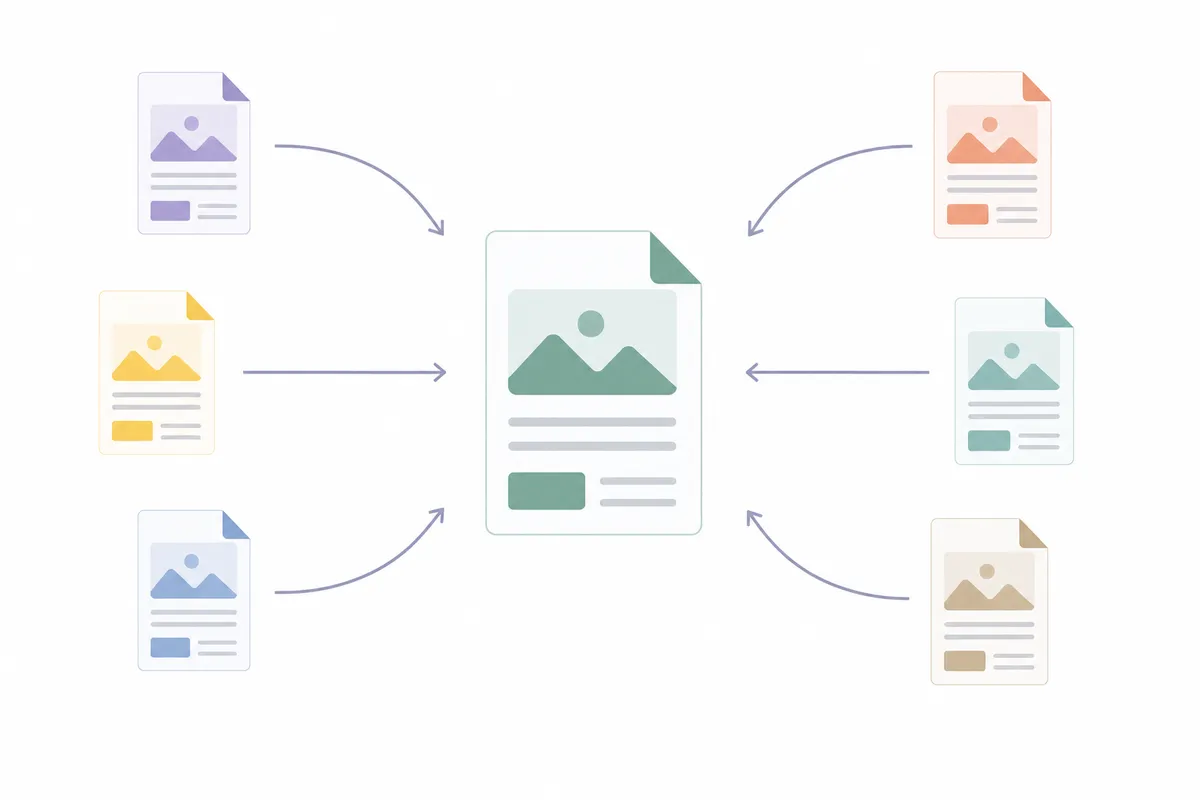
Before you touch any code, run the page through the free canonical checker. It shows exactly what canonical tag each paginated URL currently declares, whether that's itself, page 1, or something unexpected. It also checks whether the tag is consistent across the whole series. That one scan usually tells you if your canonical pagination setup is broken before you open a single template file.
What Canonical Pagination Actually Means
A canonical tag is a line of HTML, <link rel="canonical" href="https://example.com/page" />. It tells search engines which URL is the authoritative version of a piece of content. Canonical pagination applies that same idea to a series of paged URLs, like /blog?page=2 or /products/page/3.
Search engines use canonical tags to consolidate duplicate or near-duplicate content under one indexed URL. Doing so folds in the authority signals those other pages collected. Pagination is a classic duplicate-content scenario. Pages 2 through 10 of a category listing often share the same title tag and meta description. They also share much of the same template content as page 1.
Canonical Tag vs. 301 Redirect
People often confuse the two, but they solve different problems. A canonical tag is invisible to users. The visitor stays on the URL they landed on, and that URL still gets tracked in analytics. A 301 redirect actually moves the user and the search engine to a new address. The original URL disappears from your analytics entirely. For paginated series, you almost always want canonical tags, not redirects. Readers need to actually reach page 2, 3, and beyond.
Self-Referencing vs. View-All Canonicalization
Here's where canonical pagination trips people up. Without a view-all page, each paginated URL should self-canonicalize. Page 2 points its canonical tag at itself, page 3 at itself, and so on. Canonicalizing every paged URL back to page 1 is a common mistake. It tells search engines that pages 2 and beyond don't deserve to exist independently. Their unique content, different products, different articles, can then vanish from search results.
Some sites publish a single view-all page, common for long-form articles split into parts. The accepted approach there is to canonicalize each paginated segment to that view-all URL. That consolidates ranking signals onto the one page readers can bookmark and share.
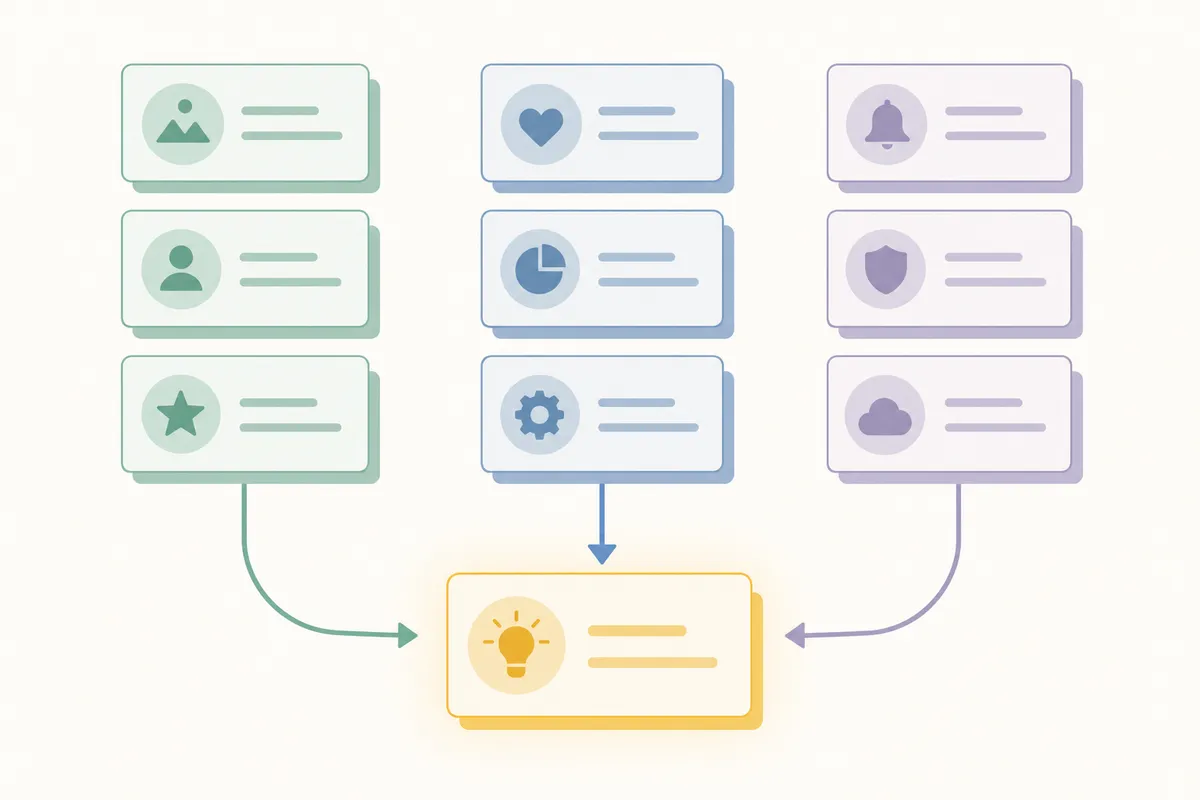
Fixing Canonical Pagination on Your Own Website
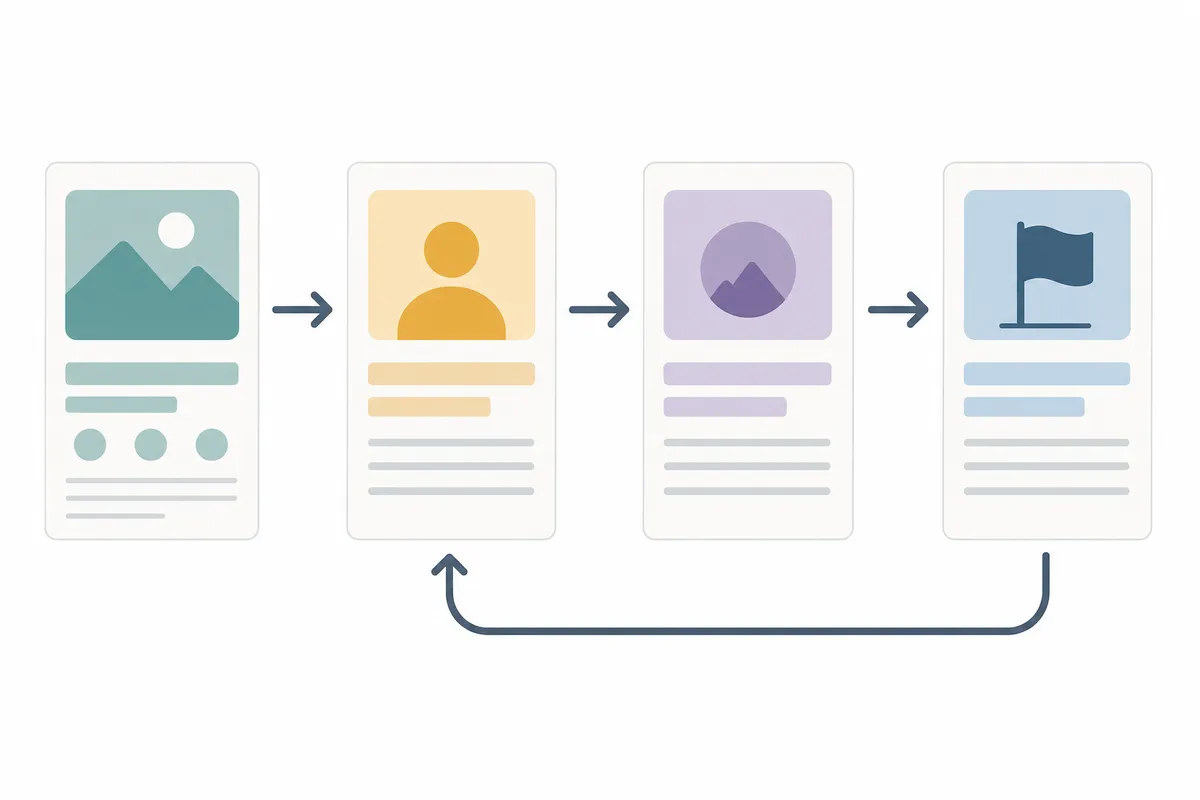
Most canonical pagination problems come down to a template setting, not a one-off manual edit. Work through these steps in order.
- Open the paginated URL's page source and search for
rel="canonical"in the<head>. Confirm there's exactly one canonical tag, not zero, not two. - Check what it points to. If page 2 declares page 1 as canonical (and you have no view-all page), that's the bug to fix.
- Find the template controlling pagination. In WordPress, this is usually the archive or category template, or a setting inside your SEO plugin. Yoast SEO, for example, has a canonical URL field under its page-level SEO settings. Leave that field blank so the plugin generates a correct self-referencing tag automatically.
- On Shopify, collection and blog pagination pages generate canonical tags automatically through the theme's
theme.liquidfile. If a custom theme overrides this, a developer will need to edit the<link rel="canonical">line directly. - Republish and re-crawl. After the fix, re-check the URL with the canonical checker. Confirm each page now self-canonicalizes, or correctly points to your view-all page.
- Watch Search Console. If a paged URL was previously marked as a duplicate, it can take a crawl cycle or two to update.
You might see a "Duplicate, Google chose different canonical than user" label in Search Console on a paginated URL. Our guide to why Google sometimes chooses a different canonical than you expect covers that case directly. You might instead see an "Alternate page with proper canonical tag" label. That one is often expected behavior rather than an error. Our breakdown of why a page shows as not indexed with an alternate canonical tag walks through how to tell the difference.
When Your Website's Own Tools Are Enough, and When They Aren't
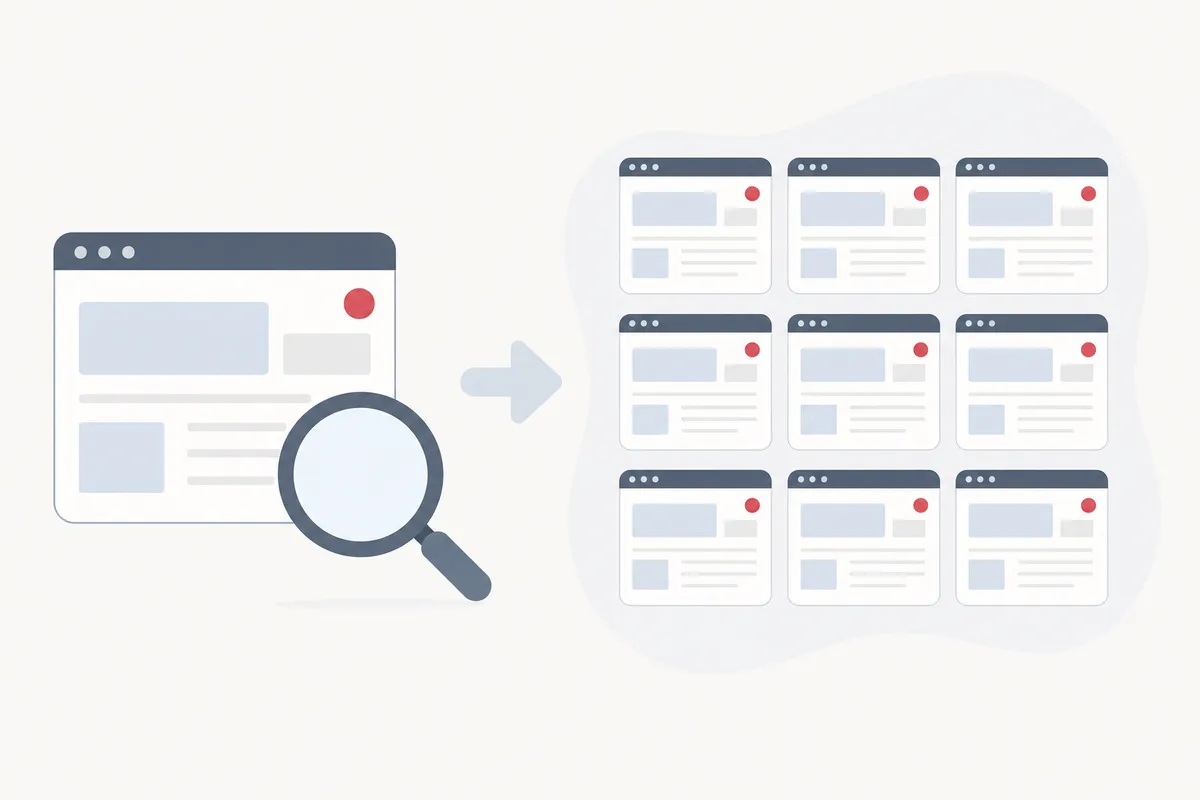
A free, one-page check is enough when you're debugging a single URL. You spotted one paginated page in Search Console, you want to confirm its canonical tag, and you're done once it's fixed. That's exactly the job a canonical checker handles well.
It stops being enough once the issue is structural. If your category, blog, or product-listing templates generate the wrong canonical logic, every paginated URL across the site inherits the same mistake. Checking them one at a time doesn't scale. A template fix needs to be verified across dozens or hundreds of URLs, not one.
| Situation | Free tool (one URL at a time) | Site-wide monitoring |
|---|---|---|
| Confirming one page's canonical tag | Enough on its own | Overkill |
| Template change affecting all paginated URLs | Too slow, one URL at a time | Needed to catch every affected page |
| One-off audit before a migration | Enough | Not necessary |
| Recurring pagination bugs after each deploy | Misses new instances between checks | Catches regressions automatically |
Common Mistakes with Canonical Pagination
These are the canonical pagination mistakes that show up most often. Our breakdown of pagination SEO mistakes that quietly sink rankings covers the rest.
| Mistake | Why it hurts | Fix |
|---|---|---|
| Canonicalizing every paged URL to page 1 | Hides unique content on pages 2+ from search results | Self-canonicalize each page unless a view-all page exists |
| Canonical URL differs in content from the canonicalized page | Search engines may ignore the tag entirely | Keep canonical and canonicalized content substantially the same |
| Multiple canonical tags on one page | Both get ignored when they disagree | Keep exactly one canonical tag per page |
| Canonical tag points to a redirecting or broken URL | The tag can't do its job if the target isn't a live, final URL | Point canonical tags only at live, 200-status URLs |
| Inconsistent URL formatting (trailing slash, parameters, case) | Creates accidental duplicate canonical targets | Standardize slashes, casing, and stripped parameters across your canonical URLs |
FAQs
Should page 2 of a paginated series have a canonical tag pointing to page 1?
Not usually. Unless you publish a view-all page, page 2 should canonicalize to itself. Pointing it at page 1 tells search engines the unique content on page 2 doesn't need to be indexed separately.
Does Google still support rel="next" and rel="prev" for pagination?
No, those pagination link attributes have long been retired as an indexing signal. Canonical tags, clear internal linking between paged URLs, and a logical URL structure now do the work that rel="next"/"prev" used to.
What's the difference between canonical pagination and a noindex tag on page 2?
A canonical tag suggests which URL should be indexed and consolidates ranking signals. A noindex tag removes a page from the index entirely. For most paginated series, self-referencing canonicals are safer than noindex, since noindex can also stop a page from passing link value.
Can a wrong canonical tag on a paginated page cause it to disappear from search results?
Yes. If page 3 canonicalizes to page 1, Google treats page 3 as a duplicate. It may drop page 3 from the index in favor of page 1, even though page 3 has different products or articles.
How do I know if my canonical pagination setup is already correct?
Run each paginated URL through a canonical tag checker. Confirm it self-references, or points to your view-all page if you have one. There should be no redirects or mismatched content in the way.
Talk to the Team About Your Canonical Pagination Setup
Getting canonical pagination right on one URL is a quick fix. Catching it across every category page, blog archive, and product listing your site generates is a different job. It's where most sites quietly lose indexed pages without noticing. If you want a clear picture of how your paginated URLs look to search engines, talk to the team. You'll get a sample report that covers those URLs and the rest of your technical SEO, built around your own site.
Sources
About the author
SearchBlueprint researched, wrote and scored this article with the content pipeline our customers run on their own sites. The score in the byline is what our content engine gave this page before it published. Nothing here is reviewed by hand, which is the point: it is the product's output, published where anyone can check it.