WPEngine Page Speed Boost: The Exact Fix, Step by Step
By Toy Wen Da, Co-Founder · Updated · 9 min read · scored 92/100
A wpengine page speed boost starts with finding exactly which page is slow and why. Fix it inside your WP Engine User Portal by clearing the cache and turning on the CDN, then let Smart Plugin Manager keep plugins current. Do that before you touch a single third-party plugin, because most of the fix lives in settings you already have.

Before you change anything, run the free Website Speed Test and paste in the exact URL that feels slow. It returns Lighthouse scores along with the metrics dragging the page down, such as large images or blocking scripts. A slow first response from the server shows up there too. The result tells you which fix in this guide applies to your page, so you aren't guessing.
What actually slows down a page on WP Engine

WP Engine's hosting removes a lot of the usual suspects. Sites run on dedicated resources instead of crowded shared servers, caching happens server-side, and Gzip compression is on by default. What's left is almost always something you or a plugin added on top.
The most common culprits are heavy, unoptimized images and plugins that load scripts on every page. A theme that calls multiple CSS and JavaScript files instead of combining them also shows up often, as does render-blocking code in the page header. These are page-building problems sitting on a fast host.
Page speed is a confirmed ranking signal, though a modest one. For the fuller picture of how much it moves rankings, read this breakdown of page speed as a ranking factor, which helps you decide how much time to spend chasing milliseconds.
Common causes and where to fix them
Web.dev, Google's own performance resource, recommends keeping Time to First Byte under 0.8 seconds, a useful benchmark for the first row below.
| Symptom | Likely Cause | Where to Fix It | Fixed By |
|---|---|---|---|
| Slow Time to First Byte | Outdated plugin or theme code running heavy queries | WP Engine caching page / plugin updates | You, via Smart Plugin Manager |
| Large page weight (images) | Unoptimized or oversized uploads | Image optimization plugin (e.g., Smush) | You |
| Slow on mobile, fine on desktop | No CDN, or CDN not serving assets regionally | CDN toggle in User Portal | You |
| Flagged "Eliminate render-blocking resources" | Theme loading CSS/JS files separately instead of combined | Theme settings or a performance plugin like NitroPack | You or a developer |
| Server errors under traffic spikes | Plan-level resource limits being hit | WP Engine Site Monitoring / plan upgrade | WP Engine support |
Fix it inside WP Engine: step by step

These steps get most of a wpengine page speed boost done without installing anything. Work through them in order.
Step 1: clear the cache first
Clear every cache layer from the caching section of your WP Engine User Portal before you diagnose anything. A stale cache can make a page look slow in a test when the live version has already improved. Repeat this after every change below, since a cached old version will otherwise mask your progress.
Step 2: turn on the CDN
WP Engine gives new customers Cloudflare as a CDN at no extra cost. If it isn't already active on your site, turn it on from the CDN section of the User Portal. A CDN serves images, CSS and JavaScript from a server near the visitor instead of wherever your WordPress install physically sits, which cuts load time for people far from your origin server.
Step 3: let Smart Plugin Manager do the updates
Outdated plugins are a common source of slow code and security risk. Smart Plugin Manager is WP Engine's automated plugin and theme update tool, and WP Engine's own documentation confirms it rolls back automatically if an update breaks something. Enable it from the plugin management area of the User Portal so you aren't manually chasing updates across every site you run.
Step 4: force HTTPS
If your SSL certificate is active (WP Engine provides one free per domain), turn on Force HTTPS in the User Portal. This isn't primarily a speed fix. It closes off mixed-content issues that slow rendering, and it supports HTTPS as a ranking signal, which Google confirmed back in 2014.
Step 5: fix the page itself
Once the hosting settings are sorted, the remaining work is almost always on the page. Compress images and defer non-critical scripts, then cut any plugin that loads CSS or JavaScript on pages that don't need it. NitroPack combines caching, code minification and image optimization in one plugin if you'd rather not manage each piece separately. If this layer is new to you, this step-by-step guide to increasing page speed in WordPress walks through the plugin-level fixes in more detail than a hosting-focused guide can.
One caution: WP Engine disallows some older caching plugins, including WP Super Cache, because the platform already handles caching server-side. A conflicting caching plugin on top of WP Engine's own layer can slow a site down instead of speeding it up.
When WP Engine's own tools are enough, and when they aren't
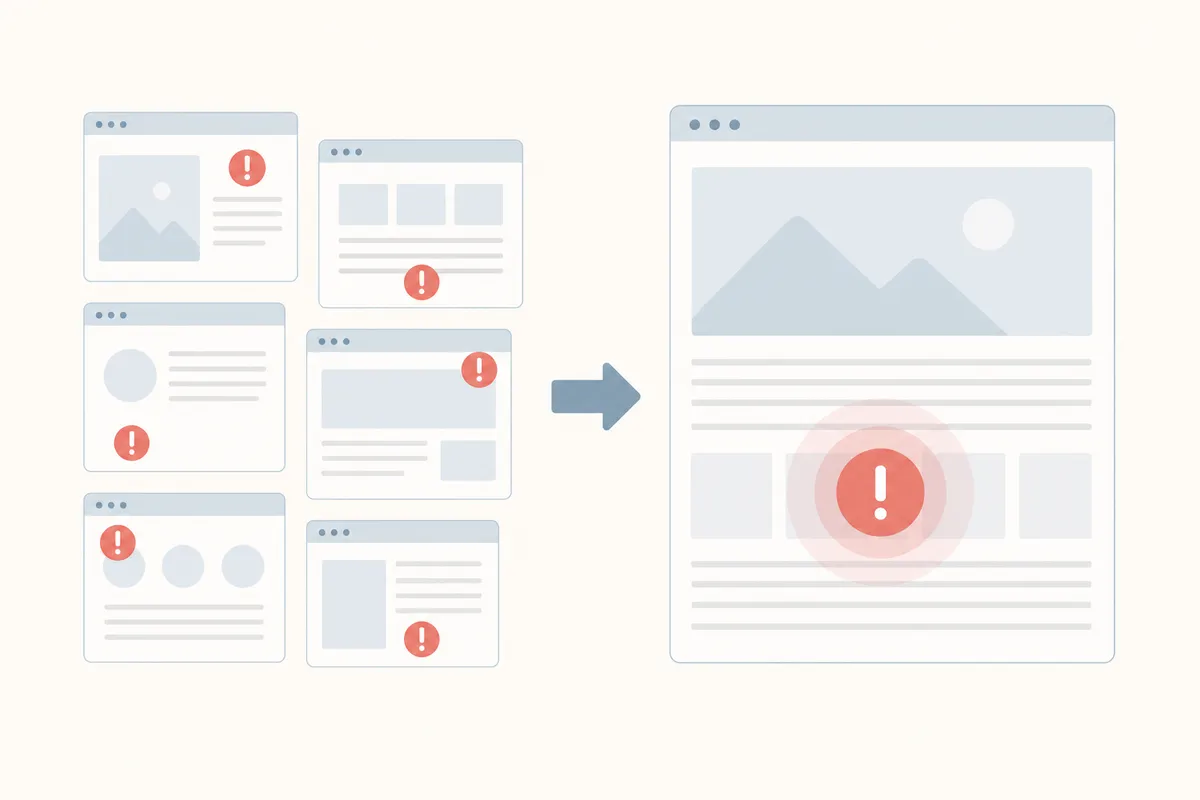
The built-in dashboard fixes real problems, but it isn't the whole job.
Scope and recurrence decide it
If the problem is site-wide (no CDN enabled, outdated plugins everywhere, caching misconfigured), the User Portal settings above are genuinely enough. They are host-level fixes for host-level problems, and they take minutes to apply.
The problem might instead be one URL, such as a product page, a landing page with a hero video or a blog post full of uncompressed screenshots. Host-level settings won't move that page much, because the slowness lives in its content.
| Situation | Are WP Engine's Built-In Tools Enough? | What To Do Instead |
|---|---|---|
| Whole site feels slow, CDN was off | Yes, turning on the CDN and clearing cache usually fixes it | Re-test after a cache clear |
| One landing page with a hero video or many large images | No, this is a page-weight problem | Compress media, lazy-load below the fold |
| Recurring slow-down after every plugin update | Partially, Smart Plugin Manager prevents most of this going forward | Audit which specific plugin adds the weight |
| Site passes WP Engine's own checks but still scores poorly on Lighthouse | No, host settings and front-end code are different layers | Run the free Website Speed Test on the exact URL and work from its findings |
| Page speed is fine, but the page still isn't ranking | Not a speed problem at all | Check on-page structure and content signals, not hosting |
The last row matters because speed is only one input into rankings. If a page loads fast but still underperforms, look at its structure and content next. Our free on-page SEO checker scores a page against its keyword and flags what's missing beyond speed, such as titles and content depth. For the fuller list of on-page levers, these on-page SEO techniques show what else moves a page up the results.
Common mistakes when chasing a page speed boost

- Installing a second caching plugin on top of WP Engine's own caching is the single most common mistake. WP Engine handles caching server-side, so adding WP Super Cache or a similar plugin creates conflicts rather than gains.
- Testing the homepage and assuming the whole site is fixed. A fast homepage says nothing about your highest-traffic landing page or your slowest blog post.
- Chasing a perfect Lighthouse score instead of the metrics that affect real visitors. A 100/100 score matters less than cutting a 6-second load time to 2 seconds on the pages people actually land on.
- Treating speed as a stand-alone fix for rankings. A fast page with thin content or a missing keyword focus still won't rank. This breakdown of the website speed mistake hurting SEO and conversions explains how a slow site quietly costs both rankings and conversions.
- Skipping the retest. Clear the cache and retest after every change, because a stale cached page leads to wrong conclusions about what worked.
Google's web.dev guidance on Core Web Vitals frames speed as one part of a broader page-experience picture. The same logic applies to reviewing on-page SEO as a whole. Our on-page SEO feature overview covers titles and headings alongside the speed and structure signals on each page.
FAQs
Does WP Engine automatically make my site fast, or do I still need to optimize it?
WP Engine handles server-side caching and Gzip compression automatically, and it provides dedicated hosting resources. Front-end weight is still yours to manage: images, scripts and theme code.
Is the free CDN on WP Engine actually Cloudflare?
Yes. New WP Engine customers receive Cloudflare as their CDN at no extra cost, and it serves your site's static assets from servers closer to each visitor.
Will a page speed boost on WP Engine improve my Google rankings?
It can help, since speed is a confirmed ranking signal, but it's a modest one next to content relevance and links. Think of a faster page as removing a drag on rankings rather than a guaranteed boost.
Why does my site feel slow even though WP Engine says caching is on?
Caching helps repeat visits and server response time. Large images, bloated plugins and a heavy theme live on the page itself, so the cache never touches them.
Should I use a plugin like NitroPack on top of WP Engine's hosting?
Often yes, for the parts WP Engine doesn't automate: image compression and code minification, as well as lazy loading. Just avoid stacking a second caching plugin, since WP Engine already caches server-side.
Run the test, then fix what it finds
Start with the free Website Speed Test on the exact page that feels slow rather than the homepage. Work down its list of flagged issues one at a time. Most will point you back to a setting in your WP Engine User Portal or to a single oversized image.
A wpengine page speed boost isn't finished until both the hosting settings and the page itself have been checked. If you want a second set of eyes on what's holding a page back beyond speed alone, talk to the team. You'll get a sample report showing where a page is losing ground.
Sources
About the author
SearchBlueprint researched, wrote and scored this article with the content pipeline our customers run on their own sites. The score in the byline is what our content engine gave this page before it published. Nothing here is reviewed by hand, which is the point: it is the product's output, published where anyone can check it.